Great Wall Brushwork Presentation Template: painted wall views with brush-framed ideas
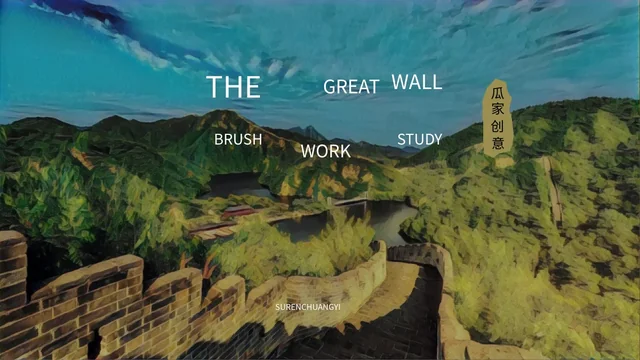
Great Wall Brushwork Presentation Template combines painting-like views of wall paths, towers and stone arches with rough brush rings and frames. Cream panels and dark overlays create space for your own explanations beside blue skies and mountain slopes. Great Wall Brushwork Presentation Template contains 23 slides in 16:9, including four dividers on pages 3, 8, 13 and 18. A four-step layout, picture cards, a static map panel and a timeline offer different ways to arrange a visual topic. Great Wall Brushwork Presentation Template also includes two native charts: a doughnut on page 6 and a bar chart on page 17, each with its own workbook. In Great Wall Brushwork Presentation Template, distinguish those linked charts from decorative brush marks and ordinary text labels. The English guidance invites you to describe composition and detail rather than repeat unverified history. Original source credits remain visible, and retained quotations are separate source records in slide notes.
Key Features of Great Wall Brushwork Presentation Template
Painted wall scenery, brush frames and editable charts.
Painted Wall Backgrounds
Great Wall Brushwork Presentation Template uses painted-looking paths, towers and arches. Give each view a role in your topic without inventing locations or credits.
Brush-Framed Sections
Great Wall Brushwork Presentation Template has four dividers with circle, rectangle and triangle brush frames. Rename their headings and match them to your contents.
Linked Doughnut Chart
Great Wall Brushwork Presentation Template includes a two-value doughnut chart and workbook. Enter your own figures and explain what the percentage represents.
Native Bar Chart
Great Wall Brushwork Presentation Template has a four-value native bar chart with brush-style fills. Edit its workbook and check values and picture-filled bars.
Cards and Visual Steps
Great Wall Brushwork Presentation Template offers picture cards and a four-step arrangement. Replace examples with your own sequence and captions for each image.
Map and Timeline Layouts
Great Wall Brushwork Presentation Template has a static map panel and timeline labels. Adapt the layouts and replace sample text or dates with checked information.
How to Use Great Wall Brushwork Presentation Template
Choose a visual topic, add your evidence and check the sequence.
-
Choose Your Visual Thread
Preview all 23 pages of Great Wall Brushwork Presentation Template. Choose wall views, picture cards and text layouts for your topic; decide how the four sections support your argument.
-
Download and Add Content
Download Great Wall Brushwork Presentation Template with an active paid plan. Keep a working copy, replace English prompts and label chart data with your own verified values and sources.
-
Review the Complete File
Read Great Wall Brushwork Presentation Template in full. Check chart workbooks, captions, dates and original source credits; inspect dark overlays and the exported PDF before sharing.
Questions about Great Wall Brushwork Presentation Template
What does Great Wall Brushwork Presentation Template include?
Great Wall Brushwork Presentation Template contains 23 PowerPoint slides with painted-looking wall scenery, four section dividers, picture-and-text layouts, two native charts, a map panel, timeline and closing page. The layouts in Great Wall Brushwork Presentation Template provide a visual setting for your own subject, not a complete history lesson. Start Great Wall Brushwork Presentation Template by deciding what you want the audience to understand. The image pages in Great Wall Brushwork Presentation Template can support a discussion of composition or a topic you research yourself. Select the useful pages rather than filling every text area. Great Wall Brushwork Presentation Template can be shortened when fewer pages communicate your point more clearly. Great Wall Brushwork Presentation Template does not verify the narrative you add.
How are the four sections in Great Wall Brushwork Presentation Template organised?
Great Wall Brushwork Presentation Template has actual divider pages at 3, 8, 13 and 18. Their brush-style circle, rectangular and triangular frames separate the sequence, while the contents page gives four entries. In Great Wall Brushwork Presentation Template, name each section according to your own outline and check the matching contents labels. Great Wall Brushwork Presentation Template also includes numbered steps and picture cards within those sections; they do not add extra chapters. Keep the main point of each section distinct. After rearranging Great Wall Brushwork Presentation Template, review the entire order so the visual transitions still make sense.
Can I edit the doughnut chart in Great Wall Brushwork Presentation Template?
Great Wall Brushwork Presentation Template contains one native doughnut chart on page 6, with two example values, 20 and 80, linked to its own workbook. The visible percentage is part of that chart, not evidence of a measured result. Open the chart data in Great Wall Brushwork Presentation Template to enter your own values and category labels. In Great Wall Brushwork Presentation Template, make clear what the parts represent and cite a source when the numbers support a claim. The surrounding brush ring and central text are separate layout elements. Check the chart and those labels together after editing; they do not all update from the same field. Keep a copy of Great Wall Brushwork Presentation Template before changing chart data.
Is the brush-style bar chart in Great Wall Brushwork Presentation Template a picture?
Great Wall Brushwork Presentation Template contains a native bar chart on page 17, with four example values, 333, 566, 238 and 433, and a linked workbook. Although its bars use brush-like picture fills, the chart in Great Wall Brushwork Presentation Template is not merely a flat screenshot or a set of unrelated manual bars. Enter new values through the chart data. In Great Wall Brushwork Presentation Template, review the labels and picture-filled shapes after making changes. The figures do not establish historical measurements or project results. Great Wall Brushwork Presentation Template has no native table to fill automatically; chart editing and ordinary text editing remain separate tasks. The Great Wall Brushwork Presentation Template chart figures are placeholders for your topic-specific values.
Are the images and map in Great Wall Brushwork Presentation Template verified reference material?
The wall scenery in Great Wall Brushwork Presentation Template is example imagery with a painted appearance. It does not establish an exact section of the wall, a photographer, an illustrator or the date of a scene. The map panel in Great Wall Brushwork Presentation Template is a static visual layout, not a verified route or a live geographic service. In Great Wall Brushwork Presentation Template, identify sources for any location or historical claims you add. Several pages reuse crops or treatments of the same images. Use Great Wall Brushwork Presentation Template picture captions to explain the detail that supports your own topic, and check rights for any third-party material you retain.
Is every source mark in Great Wall Brushwork Presentation Template translated into English?
Great Wall Brushwork Presentation Template supplies editable English guidance while preserving original source credits, including SUREN, 瓜家创意, xiaoyu PPT and the ©2020 小鱼 notice. Some genuine source lettering remains in Chinese; it is not presented as PPT AI authorship. Retained quotations in Great Wall Brushwork Presentation Template are separate source records in slide notes, not attributions for the new guidance. Website language versions describe the same English PowerPoint. In Great Wall Brushwork Presentation Template, replace the prompts with your own account and accurately credit any quotation you use. The file contains no embedded audio or video.
Which fonts does Great Wall Brushwork Presentation Template use?
Great Wall Brushwork Presentation Template uses Source Han Sans SC Regular for its editable English guidance. This font is not embedded in the PowerPoint. Install it or choose a replacement, then check Great Wall Brushwork Presentation Template for changed line breaks and spacing. In Great Wall Brushwork Presentation Template, review vertical labels, narrow panels, chart text and original source credits particularly carefully. Brush textures are image artwork rather than ordinary font characters. After a font change, inspect Great Wall Brushwork Presentation Template on both light and dark backgrounds and review the PDF for missing or cropped letters.
How do I download Great Wall Brushwork Presentation Template?
Sign in with an active paid plan to download Great Wall Brushwork Presentation Template. Paid members have unlimited daily downloads and can download the file again. Save Great Wall Brushwork Presentation Template as a working copy before editing the examples. Browse the complete Great Wall Brushwork Presentation Template preview to compare text density, image crops and section breaks with your outline. If download access is unavailable, check the account you are signed into and your plan status. The Great Wall Brushwork Presentation Template preview does not itself grant membership or confirm access. Reopen the downloaded PowerPoint before starting your changes. Open Great Wall Brushwork Presentation Template in PowerPoint and check its chart data before editing the sequence.
What should I check before sharing Great Wall Brushwork Presentation Template?
Review Great Wall Brushwork Presentation Template from the cover through the closing page. Replace sample text, timeline dates and chart figures with checked information. In Great Wall Brushwork Presentation Template, distinguish your own explanation from retained quotations and original source credits. Check every caption, the chart workbooks and text over both cream panels and dark overlays. Inspect the PDF export and test the file on the intended screen. Share the Great Wall Brushwork Presentation Template page link for the original preview and download information. The Great Wall Brushwork Presentation Template page does not grant additional rights to images, quotations or other third-party content.