

Know your balance
Read your developer API credits and check the outcome of a previous write request.
View tools (2)
get_api_accountget_operation
Create and manage presentations in your AI workspace. Choose your assistant and connect PPT.AI to get started.
Use a custom MCP connection with OAuth. Setup by your workspace administrator and PPT.AI is required; a public one-click connection is not available yet.
PPT.AI must register the client and its exact callback URL first. Use the issued OAuth client credentials, not your Api-Secret. Availability depends on your ChatGPT workspace permissions.
Read the API docs ↗For paid developer API accounts. Website and App subscriptions are separate.
Create and manage presentations from Gemini CLI with your API account. This setup is for the command-line client, not the Gemini web chat.
{
    "mcpServers": {
        "ppt-ai-api": {
            "httpUrl": "https://developer.ppt.ai/api/mcp",
            "headers": {
                "Api-Secret": "YOUR_API_SECRET"
            }
        }
    }
}
For paid developer API accounts. Website and App subscriptions are separate.
Choose a client with remote MCP and custom header support. Add your own API merchant secret, then enable the PPT.AI tools.
{
    "mcpServers": {
        "ppt-ai-api": {
            "type": "http",
            "url": "https://developer.ppt.ai/api/mcp",
            "headers": {
                "Api-Secret": "YOUR_API_SECRET"
            }
        }
    }
}
For paid developer API accounts. Website and App subscriptions are separate.
Choose a client with remote MCP and custom header support. Add your own API merchant secret, then enable the PPT.AI tools.
{
    "mcpServers": {
        "ppt-ai-api": {
            "url": "https://developer.ppt.ai/api/mcp",
            "headers": {
                "Api-Secret": "YOUR_API_SECRET"
            }
        }
    }
}
For paid developer API accounts. Website and App subscriptions are separate.
Choose a client with remote MCP and custom header support. Add your own API merchant secret, then enable the PPT.AI tools.
{
    "inputs": [
        {
            "type": "promptString",
            "id": "pptAiApiSecret",
            "description": "PPT.AI API merchant secret",
            "password": true
        }
    ],
    "servers": {
        "ppt-ai-api": {
            "type": "http",
            "url": "https://developer.ppt.ai/api/mcp",
            "headers": {
                "Api-Secret": "${input:pptAiApiSecret}"
            }
        }
    }
}
For paid developer API accounts. Website and App subscriptions are separate.
Choose a client with remote MCP and custom header support. Add your own API merchant secret, then enable the PPT.AI tools.
{
    "url": "https://developer.ppt.ai/api/mcp",
    "headers": {
        "Api-Secret": "YOUR_API_SECRET"
    },
    "transport": "streamable-http"
}
For paid developer API accounts. Website and App subscriptions are separate.
https://developer.ppt.ai/api/mcpThese examples use Api-Secret. Browser OAuth is reserved for registered clients; a server URL alone does not enable sign-in in every assistant.
Show my PPT.AI API balance and available slide options. Do not generate, edit, delete or spend credits.
create_slidesadvance_slidesReview the outline, choose a template, then confirm generation.
Give your assistant a goal, an audience and the material to work from. Review the plan before approving paid generation or changes.
Work from text or a public webpage in Standard mode, or build a Professional or Creative session around your topic.
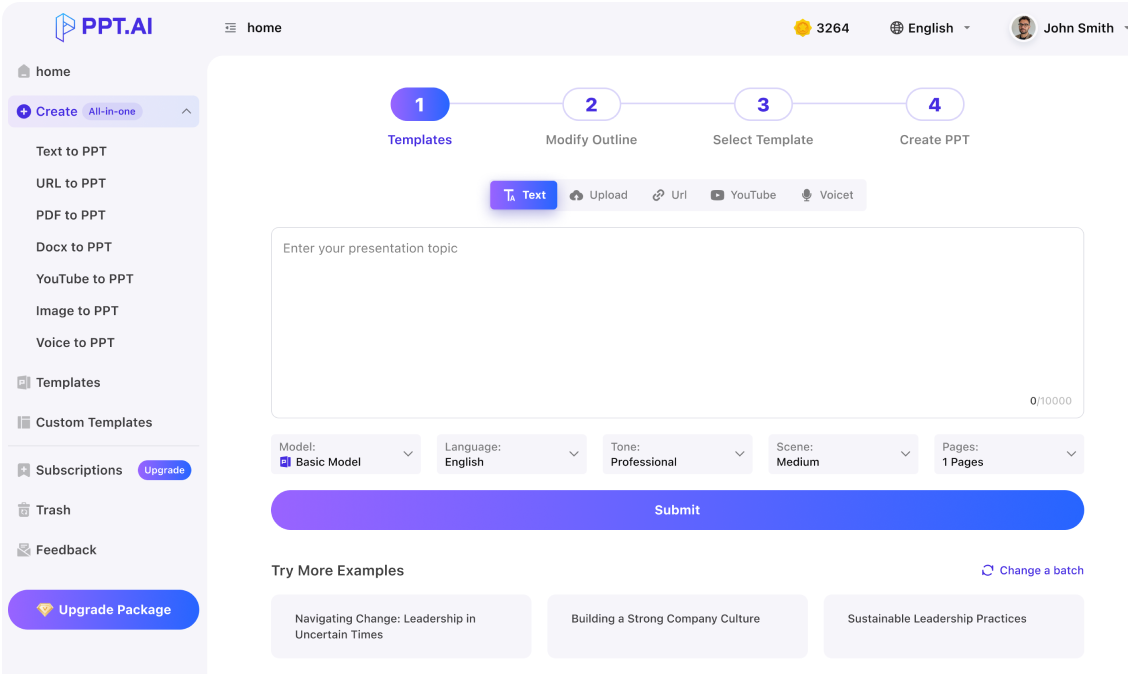
Prepare a product launch deck for our sales team. First show the available modes and prices, then draft an outline for my review.
For Professional and Creative decks, revise the outline, edit a page or choose another template in the same conversation.
Find my latest Professional deck. Suggest a clearer opening and a shorter conclusion. Show any editing cost before making changes.
Export Professional or Creative decks as PPTX, PDF, PNG or HTML. Standard decks have their own download tool.
Export my finished deck as an editable PPTX. If the export is pending, keep checking the same export until the download link is ready.
Your assistant can follow the whole workflow or handle one task. Expand a group to see the exact tool names.
Read your developer API credits and check the outcome of a previous write request.
get_api_accountget_operationExplore templates, create a source task, draft content, generate a PPT and find your previous downloads.
get_ppt_optionslist_ppt_templatescreate_ppt_taskgenerate_ppt_contentgenerate_pptlist_pptsget_pptdownload_pptExplore models and templates, answer the brief, review the outline and advance to Professional or Creative generation.
get_slide_optionslist_slide_templatescreate_slidesadvance_slidesRevise Professional or Creative content through chat, or regenerate the finished deck with another template.
chat_slidesretheme_slidesFind your sessions, follow progress, retry failed stages, stop a running task or permanently delete your own session.
list_slidesget_slidesretry_slidesstop_slidesdelete_slidesRead a slide’s HTML or export a finished Professional or Creative deck, including editable PPTX.
get_slide_pageexport_slidesMCP uses the developer API you already pay for. It follows your merchant account’s permissions, credit balance and existing generation prices.
Explore developer API accessConnect your API account, check your options and start with a brief worth presenting.