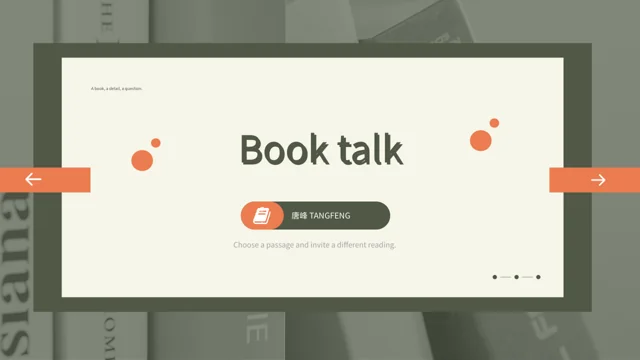
Olive Book Frame Presentation Template: book photographs and space for a closer reading
Olive Book Frame Presentation Template sets a reading conversation within dark olive, cream and orange frames. The 25-slide, 16:9 deck pairs books and miniature reader scenes with photographs and open writing areas. Olive Book Frame Presentation Template has four numbered parts on pages 3, 8, 13 and 20. Follow a passage through observation, interpretation and a question, using alternating steps, paired responses and compact note cards. Olive Book Frame Presentation Template also includes manually arranged percentage bars, concentric arrows and a check-and-cross matrix; their labels are examples, without a linked reading score. Ordinary editable prompts are independent English guidance, and original wording is retained in notes for the corresponding page. Olive Book Frame Presentation Template preserves the supplied pictures, audio and source names, including Chinese labels. Keep quotations distinct from your response and finish on the thank-you page with a question worth discussing.
Key Features of Olive Book Frame Presentation Template
Book photographs, olive frames and concise ways to compare a reading.
Olive Frames and Cream Writing Areas
Olive Book Frame Presentation Template pairs dark olive, cream and orange frames. Use the writing areas for a passage, a short response and a focused question.
Four Numbered Reading Parts
Olive Book Frame Presentation Template has four numbered section pages. Follow a reading detail through observation, interpretation, comparison and discussion.
Book Photographs and Reader Scenes
Olive Book Frame Presentation Template pairs books, miniature readers and floral photographs. Keep crops balanced and avoid inventing a pictured person’s identity.
Cards for Different Interpretations
Olive Book Frame Presentation Template uses alternating steps and paired response cards. Compare interpretations and give a reference that another reader can find.
Manual Bars and a Comparison Matrix
Olive Book Frame Presentation Template keeps manual bars, concentric arrows and a check-and-cross matrix. Explain labels; these objects do not calculate scores.
A Question Beyond the Closing Slide
Olive Book Frame Presentation Template ends with a thank-you page. Gather one observation, revisit a disagreement and invite readers to choose their next question.
How to Use Olive Book Frame Presentation Template
Choose a passage, fill its frames and check the saved presentation.
-
Choose a Passage and a Sequence
Browse the 25 pages of Olive Book Frame Presentation Template. Pick a passage and record its page or chapter, then choose the four-part sequence and response cards that suit your reading group.
-
Download and Keep a Reference Copy
Get Olive Book Frame Presentation Template with an active paid plan. Daily downloads are unlimited and repeatable. Save a reference copy, then add quotations and responses in a working file.
-
Fill the Frames and Review the File
Edit Olive Book Frame Presentation Template with concise book notes. Replace sample labels, check photographs and writing frames, then reopen the saved PPTX to review fonts, crops and audio.
Questions about Olive Book Frame Presentation Template
How do I download Olive Book Frame Presentation Template for a book discussion?
Olive Book Frame Presentation Template can be downloaded after you sign in with an active paid plan. Review the previews of Olive Book Frame Presentation Template before choosing pages for a group discussion. Daily downloads of Olive Book Frame Presentation Template are unlimited, and you may obtain another copy when needed. Keep an untouched version of Olive Book Frame Presentation Template so the original composition remains available while you edit. Use a working copy of Olive Book Frame Presentation Template for the book title, compact quotations, page references and your own questions. Access to the file does not establish separate permission for every supplied photograph or recording. Plan the discussion around the book you actually read rather than treating the prompts as a finished review.
How is Olive Book Frame Presentation Template organised?
Olive Book Frame Presentation Template contains 25 widescreen slides in a 16:9 format. Its contents page introduces four parts, and the section pages of Olive Book Frame Presentation Template appear at 3, 8, 13 and 20. Use the first part of Olive Book Frame Presentation Template to select a question and passage, then explore a detail, compare responses and prepare a discussion. You can choose fewer pages from Olive Book Frame Presentation Template when the group has limited time; update the contents to describe the pages you keep. The closing page of Olive Book Frame Presentation Template says Thank you. The numbered parts offer a reading structure, without specifying a particular book or proving that the source names describe a real reader’s experience.
Are the percentages in Olive Book Frame Presentation Template linked to data?
Olive Book Frame Presentation Template contains manually drawn bars and concentric arrow layouts with sample percentages. These shapes in Olive Book Frame Presentation Template are separate from a native chart or a linked workbook. The check-and-cross matrix of Olive Book Frame Presentation Template is also a manual arrangement rather than a native table object. Replace sample labels in Olive Book Frame Presentation Template with values you can explain, or use the shapes simply to distinguish reading actions and comparisons. The social-media icons in Olive Book Frame Presentation Template sit beside manual bars; they do not connect to an account or establish engagement figures. Keep observed details, measured information and decorative examples distinct. Changing a percentage label does not update other shapes automatically.
Can I change the book photographs in Olive Book Frame Presentation Template?
Olive Book Frame Presentation Template combines editable writing areas and layout shapes with supplied photographs and illustrations. The miniature readers and book scenes in Olive Book Frame Presentation Template are picture compositions, not editable three-dimensional models. If you replace a photograph in Olive Book Frame Presentation Template, check its frame and crop together so an important detail is not hidden. The visible book-spine words and artwork in Olive Book Frame Presentation Template belong to the supplied pictures and remain part of their pixels. A new caption in Olive Book Frame Presentation Template should explain your passage or response, without assigning an identity, author or location to an unidentified picture. Preserve relevant source information and use replacement material with permissions appropriate to the way you intend to share it.
Where should quotations go in Olive Book Frame Presentation Template?
Olive Book Frame Presentation Template offers compact note groups, paired response cards and alternating numbered steps. Select a writing area in Olive Book Frame Presentation Template for a short quotation, then give the chapter or page where another reader can find it. Use two adjacent response areas in Olive Book Frame Presentation Template to compare interpretations of the same detail. The quotation-style card in Olive Book Frame Presentation Template currently contains independent reading guidance rather than a verified quotation from a published book. When you fill Olive Book Frame Presentation Template, distinguish the quoted words from the explanation you write around them. Leave space for a question that another reader can answer differently, and avoid extending a long extract over the surrounding photographs or decoration.
Which fonts and languages are supplied in Olive Book Frame Presentation Template?
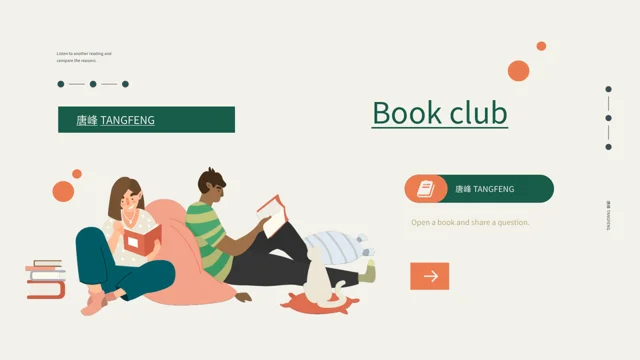
Olive Book Frame Presentation Template uses Source Han Sans SC Regular and Bold for its ordinary editable text, with no font files embedded. The new reading prompts in Olive Book Frame Presentation Template are independent English guidance. Original visible wording is stored in reference notes for the corresponding pages of Olive Book Frame Presentation Template, while source names and picture lettering remain with their supplied material. Chinese source labels, including 唐峰TANGFENG, are still present in Olive Book Frame Presentation Template; they do not identify the author of the new guidance or verify a user’s identity. Website language versions of Olive Book Frame Presentation Template describe the same PPTX rather than separate translated slide files. Use suitable installed fonts or choose a replacement, then inspect narrow labels and large headings after saving.
How should I handle the source names and sound in Olive Book Frame Presentation Template?
Olive Book Frame Presentation Template retains its original audio, picture assets and source names. The labels in Olive Book Frame Presentation Template indicate supplied source material, without proving that one person created every photograph or performed the recording. Check playback in Olive Book Frame Presentation Template within your editor and decide whether the sound helps the group focus on the book. Static previews of Olive Book Frame Presentation Template do not play the audio or establish a new music licence. Preserve source information when preparing Olive Book Frame Presentation Template for distribution and check the permissions relevant to your chosen material and setting. Describe the reading notes you add as your contribution. Keep original assets, book quotations and your discussion prompts distinguishable rather than attributing new text to a source name.
What should I examine in the previews of Olive Book Frame Presentation Template?
Olive Book Frame Presentation Template provides a preview for each of its 25 final pages. Read through Olive Book Frame Presentation Template from the opening book scene to the closing thank-you page, noting the different amounts of writing space. A small card in Olive Book Frame Presentation Template needs a shorter response than a broad quotation area, so choose the point before selecting its frame. The manual bars and matrix of Olive Book Frame Presentation Template are visual examples, not a completed reading assessment. Use the previews of Olive Book Frame Presentation Template to decide which layouts support your conversation, then download the file to check editing and audio in your own software. After replacing a picture, review the surrounding composition as well as the cropped image.
How do I finish and share Olive Book Frame Presentation Template?
Olive Book Frame Presentation Template works best when each selected writing area carries one clear reading point. Before presenting Olive Book Frame Presentation Template, replace placeholder guidance with accurate book details and concise responses. Inspect the olive and cream areas of Olive Book Frame Presentation Template after changing a font, and check that no heading or quotation covers a photograph. Export Olive Book Frame Presentation Template to PDF when the group needs a static handout, then review the exported pages in order. Keep an editable copy of Olive Book Frame Presentation Template for later discussion and test the original sound separately if you share the PPTX. End with a takeaway and an open question, preserving source labels and separating the book’s words from your own interpretation.