Professional
Creative
Standard
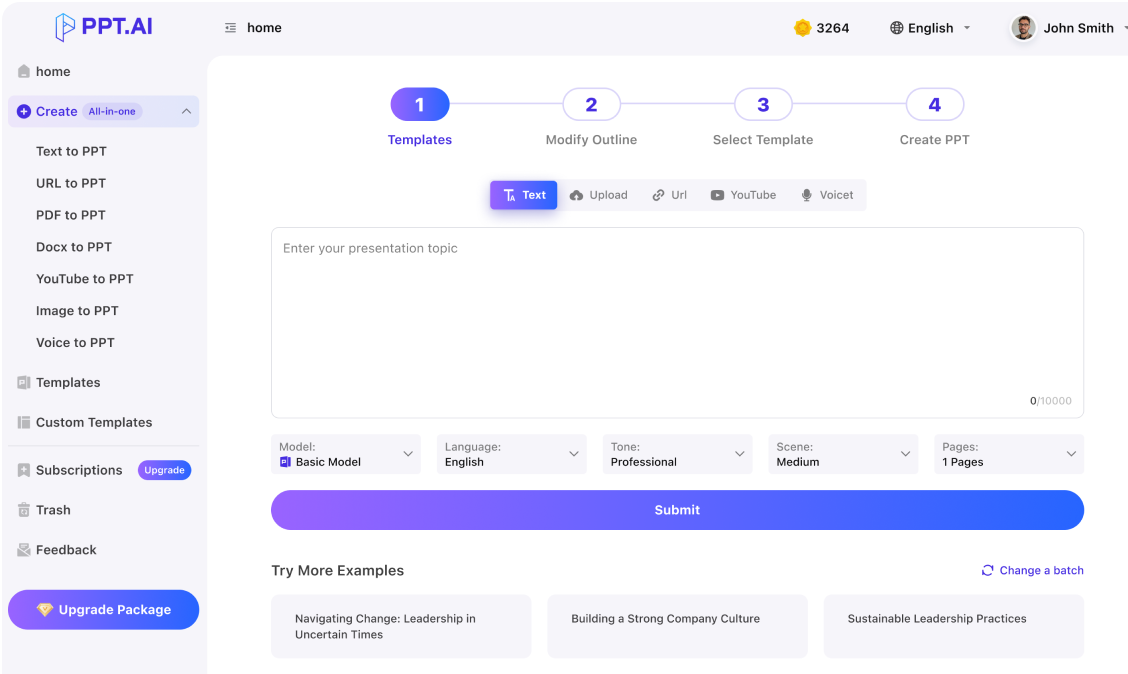
Text
Upload
Url
YouTube
Image
Submit
Drag and drop a file to create a PPT
Supports DOC, DOCX, PDF, PPT, PPTX, TXT, MD, XLS, XLSX, CSV, HTML, EPUB, MOBI, XMIND, and MM files under 10MB
Choose a File
Submit
Submit
Drag and drop a file to create a PPT
Supports PNG, JPG, JPEG, and BMP files under 5MB
Choose a IMAGE

An image to ppt converter with a clear starting point

Start with a screenshot, photographed page or diagram. The image to ppt converter uses your material. Upload a readable picture and check the extracted content. Use the image to ppt converter to select the points and adapt the wording to your audience.
Upload a clear picture

Give the image to ppt converter a readable source

Crop browser controls, straighten pages and keep labels legible. The image to ppt converter accepts JPG, JPEG, PNG and BMP. A clear source helps the image to ppt converter read the information. Check dense tables and handwriting; compare names, numbers and units with the original.
Upload a clear picture

Review what your image to ppt converter creates

After the image to ppt converter prepares the content, check its order and choose a design. Keep one main idea per slide. The image to ppt converter starts the process; you decide whether to clarify a heading, add an explanation or correct a figure.
Upload a clear picture

How to use the image to ppt converter

Choose a picture, review the content, finish the slides.
Step 1
Step 2
Step 3

Upload a clear picture

Choose JPG, JPEG, PNG or BMP in the image to ppt converter. Keep the picture readable and retain the original for comparison.

Check the outline and design

Review the image to ppt converter outline. Correct recognition errors, remove unrelated details and select your language, settings and design.

Edit, export and check

After using the image to ppt converter, edit the slides and open the exported file. Check labels, figure references and previously unclear details.

Use image to ppt converter

Where an image to ppt converter fits your work

Practical starting points for a presentation.
Meeting notes
Use the image to ppt converter with a whiteboard photo. Separate decisions from questions and confirm names and deadlines.
Classroom material
Bring a textbook diagram into the image to ppt converter. Add explanations for your students and credit the source.
Research figures
Start with a figure in the image to ppt converter. Check units, the legend and source before explaining results.
Project updates
Start the image to ppt converter with a project screenshot. Choose relevant milestones and confirm progress against the original.
Product discussions
Use the image to ppt converter with a product screenshot. Explain the task and decision needed; remove unrelated details.
Workshop planning
Give the image to ppt converter a planning-board photo. Group notes, clarify abbreviations and organise discussion around your goal.

Questions about the image to ppt converter

Know what to check before you share the result.

What does the image to ppt converter do?

The image to ppt converter starts a presentation from screenshots or photographed pages. Review its extracted text and slides for recognition errors.

Which files can the image to ppt converter accept?

Upload JPG, JPEG, PNG or BMP. Before using the image to ppt converter, check readability and replace blurry pictures with clearer captures.

Will the image to ppt converter copy the layout exactly?

The image to ppt converter does not guarantee exact reproduction. If positioning matters, compare the result and adjust it in your slide editor.

Can the image to ppt converter read charts and tables?

With the image to ppt converter, check axes, headings and decimals. Keep original data; a picture alone may not support an editable chart.

How should I prepare a photographed page?

Keep the camera parallel and avoid glare. For the image to ppt converter, retake pictures with unreadable labels or missing lines.

Can I edit the resulting slides?

Review text, headings and layouts in the editor. After using the image to ppt converter, compare technical terms and names with your source.

Do I need permission to upload an image?

Only upload permitted images. Before using the image to ppt converter, remove unnecessary confidential details, follow your organisation's rules and retain required credits.

What should I check before downloading?

After using the image to ppt converter, check slide order, names, numbers and credits. Open the export and inspect text at presentation size.

Discover More PPT AI Products

Unlock even more with PPT AI suite of intelligent solutions

PPT AI Blog

Explore premium articles to learn how to maximize your use of PPT AI for better presentations.
Try PPT.AI Today
Start here, better presentations instantly.
Start for free
Help us understand?
What was the reason you didn't complete your payment?
Continue payment
Submit feedback