Blue Orbit Lesson Plan Presentation Template: connect the parts of your lesson
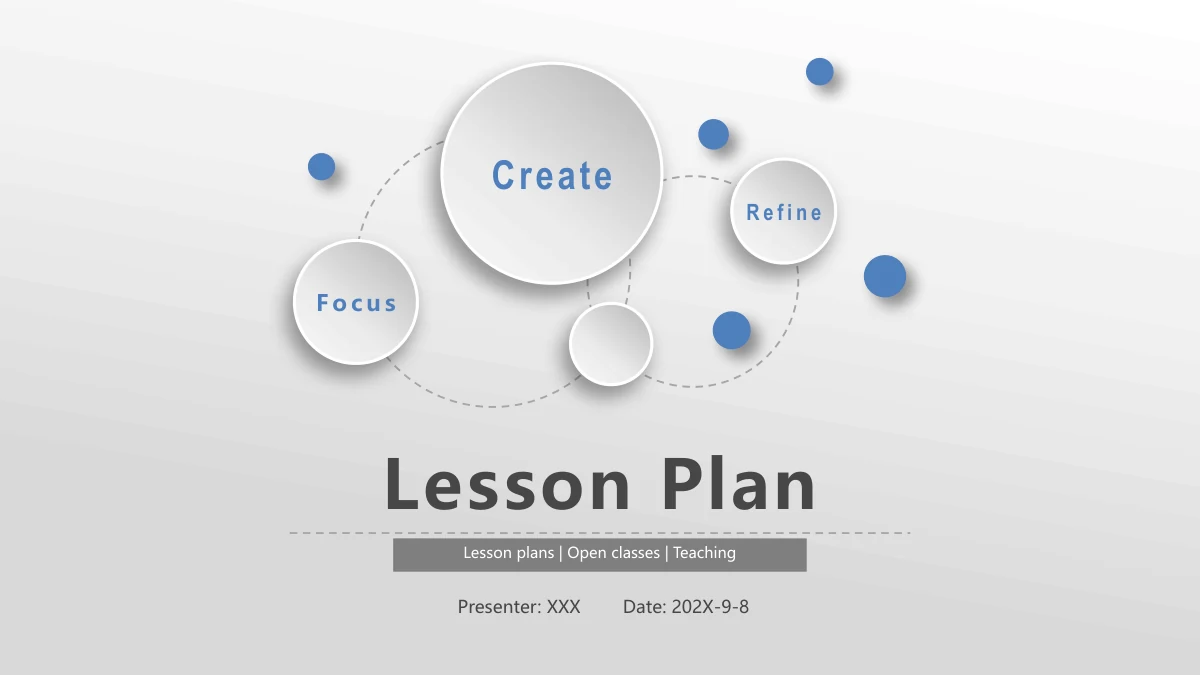
Blue Orbit Lesson Plan Presentation Template builds a teaching presentation around blue dots, dotted orbital paths and raised white circles. A pale diagonal background connects the six chapters without visual clutter. Blue Orbit Lesson Plan Presentation Template moves from teaching background and analysis to learning methods, the lesson process, board design and results. Use the folding-paper notes, large numbered panels and photo layouts to explain why an activity belongs in your plan. A seven-stop timeline gives the lesson sequence its own page, while steps and connected circles offer alternatives for smaller discussions. Blue Orbit Lesson Plan Presentation Template also includes space to describe strengths, identify gaps and propose improvements. The mountain strip near the end provides a distinct setting for five closing priorities. Keep the sample times and labels only when they match your lesson; the slides supply a visual framework rather than verified teaching evidence.
Key Features of Blue Orbit Lesson Plan Presentation Template
Orbit circles, structured chapters and purposeful layouts.
Blue Orbit Theme
Blue Orbit Lesson Plan Presentation Template uses dotted paths and raised circles. Short headings beside the blue accents leave clear space for the actual lesson.
Six Teaching Chapters
Blue Orbit Lesson Plan Presentation Template has six chapters, from background to results. Update the contents and divider names to match the sections you use.
Seven-Stage Timeline
Blue Orbit Lesson Plan Presentation Template shows seven stages with sample times. Set each duration yourself, then check that the total fits the lesson length.
Photo and Diagram Layouts
Blue Orbit Lesson Plan Presentation Template pairs tablet, classroom and project photos with diagrams. Check the crops and give each image a short, relevant note.
Board Planning Pages
Blue Orbit Lesson Plan Presentation Template includes a central keyword diagram and a photo-led comparison. Use them to explain the hierarchy of your board layout.
Reflection and Improvement
Blue Orbit Lesson Plan Presentation Template separates results, strengths, gaps and improvements. Support each claim and close with a short set of useful priorities.
How to Use Blue Orbit Lesson Plan Presentation Template
Map the lesson, adapt the examples and rehearse.
-
Choose a Teaching Sequence
Use Blue Orbit Lesson Plan Presentation Template to map six sections before adding detail. Choose layouts that support your explanation, update the contents and check the sequence aloud.
-
Replace the Working Examples
Fill Blue Orbit Lesson Plan Presentation Template with objectives, activities and photos. Replace sample times and labels, check image crops and give each proposed outcome an explanation.
-
Check and Present the Lesson
Run Blue Orbit Lesson Plan Presentation Template in slideshow mode on your actual screen. Check small labels, timing and the final export before sharing selected teaching pages with learners.
Blue Orbit Lesson Plan Presentation Template FAQs
How can I download Blue Orbit Lesson Plan Presentation Template?
The download button provides Blue Orbit Lesson Plan Presentation Template to members with an active paid plan, with unlimited daily and repeat downloads. Start a working copy of Blue Orbit Lesson Plan Presentation Template for the lesson you want to explain. Its six-part structure suits a discussion of context, methods, classroom sequence, board layout and reflection; it is not a ready-made subject lesson. Before filling Blue Orbit Lesson Plan Presentation Template, decide which of those sections your audience needs. A short teaching demonstration may use the opening, timeline and one activity rather than all 32 pages. Keep the supplied Blue Orbit Lesson Plan Presentation Template alongside your edited copy so discarded layouts remain available. Add your presenter details only after selecting a clear route through Blue Orbit Lesson Plan Presentation Template.
How many slides does Blue Orbit Lesson Plan Presentation Template contain?
Blue Orbit Lesson Plan Presentation Template has 32 widescreen slides, including six numbered chapter dividers. The chapter sequence in Blue Orbit Lesson Plan Presentation Template begins with teaching background and analysis, then moves through learning methods and the lesson process to board design and results. Select pages by their purpose: the seven-stop timeline explains pacing, the globe-shaped bulb groups objectives, and the large 1–4 panels separate learning actions. The board-planning pages in Blue Orbit Lesson Plan Presentation Template combine a four-corner keyword diagram with a wind-turbine project photo. For a reflective ending, choose strengths, gaps or improvements rather than repeating them all. The mountain page in Blue Orbit Lesson Plan Presentation Template leaves room for five priorities before the closing slide. Revise the contents after shortening Blue Orbit Lesson Plan Presentation Template.
Can I edit text and colors in Blue Orbit Lesson Plan Presentation Template?
Use the editable text and available shape fills in Blue Orbit Lesson Plan Presentation Template to label your own lesson. Update matching blue and dark gray elements consistently; shared details may sit on the slide master. The seven timeline stops in Blue Orbit Lesson Plan Presentation Template contain sample durations totaling 48 minutes. Change the labels and check their sum when your activities need a different schedule. Blue Orbit Lesson Plan Presentation Template uses manual diagrams, not native charts with linked workbooks: circular size and arrow length do not verify a teaching result. Keep the globe-shaped bulb as an organizing image, or relabel its five satellites for your objectives. Photos in Blue Orbit Lesson Plan Presentation Template require separate image editing for changes inside the picture. Check the small tags in Blue Orbit Lesson Plan Presentation Template after every text replacement.
Can I preview every page of Blue Orbit Lesson Plan Presentation Template?
All 32 pages of Blue Orbit Lesson Plan Presentation Template can be reviewed before downloading. The gallery for Blue Orbit Lesson Plan Presentation Template follows the same six-chapter sequence as the supplied English PPTX. Use the thumbnails in Blue Orbit Lesson Plan Presentation Template to compare the lesson outline, seven-stage timing strip, inquiry steps and board layouts. Enlarge a preview of Blue Orbit Lesson Plan Presentation Template when checking narrow labels or picture crops. The final page of Blue Orbit Lesson Plan Presentation Template is the closing slide. Choose a shorter sequence from Blue Orbit Lesson Plan Presentation Template if you do not need every teaching section.
Can I open Blue Orbit Lesson Plan Presentation Template in another presentation editor?
When moving Blue Orbit Lesson Plan Presentation Template to another editor, test representative layouts before converting the full lesson. Open a copy containing an orbital divider, the folded-paper columns, a tablet frame and the triangular classroom photo. These pages expose different shape, shadow and crop behavior in Blue Orbit Lesson Plan Presentation Template. Compare the 16:9 frame and the spacing around small numbered discs rather than relying on the import-success message. Keep an untouched Blue Orbit Lesson Plan Presentation Template as your reference while adjusting the imported copy. Fonts and grouped objects may change between editors, and media playback needs a separate check. Export that short selection from Blue Orbit Lesson Plan Presentation Template, inspect it on the display you plan to use, then convert the remaining Blue Orbit Lesson Plan Presentation Template pages if the result is suitable.
Which fonts are used in Blue Orbit Lesson Plan Presentation Template?
Blue Orbit Lesson Plan Presentation Template uses Arial, Arial Black, Arial Narrow, Century Gothic, Impact, Microsoft YaHei, STHupo and Wingdings. Narrow headings in Blue Orbit Lesson Plan Presentation Template use Arial Narrow, while heavier display labels use Impact or Arial Black. Keep the required fonts available when opening Blue Orbit Lesson Plan Presentation Template on another computer. Replacing a font in Blue Orbit Lesson Plan Presentation Template can change line breaks in small circles, folded-paper panels and numbered tags. Check those layouts after editing Blue Orbit Lesson Plan Presentation Template, and test the slideshow on your intended device. The preview shows Blue Orbit Lesson Plan Presentation Template with the fonts used for its English version.
Is the downloadable Blue Orbit Lesson Plan Presentation Template file entirely in English?
The editable text in Blue Orbit Lesson Plan Presentation Template is English, including its cover, six chapter labels, lesson guidance and closing message. The tablet-store interface pictured in Blue Orbit Lesson Plan Presentation Template has also been adapted with English labels. Website translations describe the same English Blue Orbit Lesson Plan Presentation Template file; they do not create a separate translated PPTX. Replace the example lesson content in Blue Orbit Lesson Plan Presentation Template with your own subject. Photos in Blue Orbit Lesson Plan Presentation Template remain images rather than editable text. The original MP3 in Blue Orbit Lesson Plan Presentation Template has been retained without playback or translation, so English audio is not promised.
Can I use Blue Orbit Lesson Plan Presentation Template for a commercial project?
Treat commercial use of Blue Orbit Lesson Plan Presentation Template as a question about both the template and the materials in your finished lesson. A paid download alone does not settle the rights to its photographs or fonts. Check the applicable terms before distributing Blue Orbit Lesson Plan Presentation Template in a paid course or client project. The wind-turbine, classroom and tablet photos describe different contexts; choose images you are entitled to use and that actually match your teaching topic. Retain any required legitimate attribution in Blue Orbit Lesson Plan Presentation Template. Do not offer an unchanged Blue Orbit Lesson Plan Presentation Template as a separately resold asset or advertise unconfirmed permissions. Your own licensed photos and original lesson notes can replace the examples in Blue Orbit Lesson Plan Presentation Template without implying that the source assets belong to you.
Can I share Blue Orbit Lesson Plan Presentation Template with colleagues or learners?
Prepare different copies of Blue Orbit Lesson Plan Presentation Template for planning and for learners. A colleague reviewing your approach may need the six-part contents, timeline and board-design explanation. Learners may need only the activity, recap and homework pages from Blue Orbit Lesson Plan Presentation Template, without draft analysis or private notes. Export that selection and check whether the sequence still makes sense after removing dividers. A PDF version of Blue Orbit Lesson Plan Presentation Template can change transitions or media behavior, so inspect the actual output. Keep the mountain priorities brief enough to serve as a useful takeaway. Share Blue Orbit Lesson Plan Presentation Template only within the permissions that apply, and let colleagues obtain editable templates through their own eligible accounts. A finished lesson made with Blue Orbit Lesson Plan Presentation Template does not transfer redistribution rights to the original file.