

Peach Star Classroom Presentation Template: a cheerful setting for lesson notes
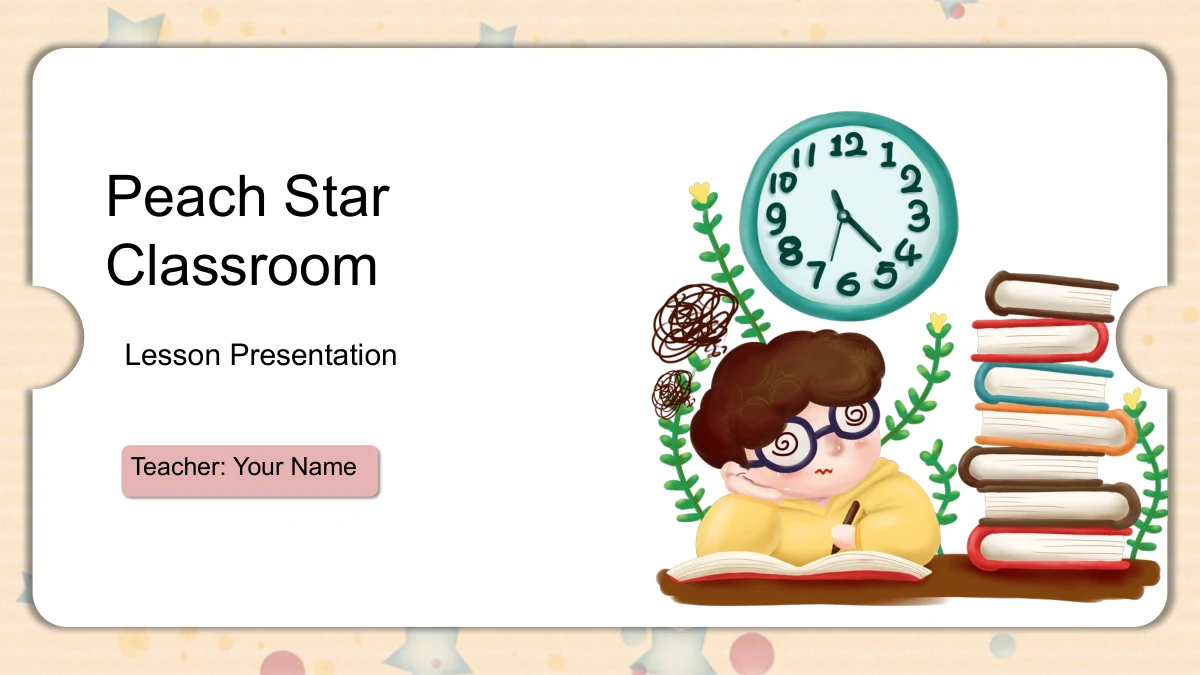
Peach Star Classroom places a white ticket-shaped panel over a soft peach background scattered with stars. A student, books and a clock introduce the deck and return on its thank-you page. Inside, cows, sheep, a crocodile, an elephant and an animal train accompany short notes, while a group photo sits in a hanging cloud frame. The 20 slides follow four sections: Overview, Ideas, Activities and Review. Each divider brings back four children with balloons, making the changes of section easy to recognize. Paired notes, four numbered steps and three-column pages offer different ways to organize a few points. A fox page adds two manually drawn bars with sample labels. The text is a set of English prompts, not a finished lesson. Choose the pages that fit your topic, add your examples and questions, and leave enough space around the pictures. The small details give the pages variety while the peach frame keeps the presentation connected.
Key Features of Peach Star Classroom Presentation Template
Peach frames, animal companions and clear spaces for notes.
Peach Stars and White Panels
A peach star pattern surrounds a white panel with rounded corners and side notches. Soft shadows separate the writing area from the decorative background.
Four Balloon-Filled Section Openings
Four children with balloons introduce Overview, Ideas, Activities and Review. A smiling sun and cloud repeat beside the headings to connect the four sections.
Animal Artwork Beside Your Notes
Cows, sheep, a crocodile and an elephant give the note pages different settings. Mushroom and starfish illustrations add variety without defining a finished lesson.
Paired Views and Numbered Steps
Two-note pages support comparison, while four diamond tabs organize short steps. Three columns and lettered paw motifs offer other ways to group your explanations.
A Photo in a Hanging Cloud Frame
One group photograph appears in a pink cloud-shaped frame above two notes. Use the paired text to discuss a detail, and inspect the crop if you replace the picture.
Review Prompts and Manual Examples
A train, desk clock and paper plane accompany review notes. The fox page has two separate 30% labels and unequal drawn bars that need to be edited independently.
How to Use Peach Star Classroom Presentation Template
Choose a sequence, add your material and check each page.
-
Plan the sections
Browse all 20 previews and choose the note layouts that suit your topic. Use Overview, Ideas, Activities and Review as a starting sequence, leaving space for the illustrations on each page.
-
Replace the English prompts
Download the English PPTX with an active paid membership and save a working copy. Add your headings, examples and questions, keeping the text brief enough for the paired notes and narrow columns.
-
Review before presenting
Check picture crops, text spacing and the two manual percentage examples after editing. Inspect an exported PDF and test slide effects on your presentation computer before sharing the lesson.
Questions about Peach Star Classroom Presentation Template
What is included in the 20-page file?
The file contains a cover, contents page, four section dividers, 13 content pages and a closing. Slides 3, 7, 11 and 15 introduce Overview, Ideas, Activities and Review.
Is this a complete lesson or animal-science presentation?
No. The animals and classroom objects provide a visual setting for general English prompts. Supply your own subject material, examples, questions and activities; the illustrations do not define a finished curriculum.
Which elements can I edit?
Text boxes and separate drawing shapes are editable. Detailed illustrations and the photograph remain images. Replacing a picture does not make its internal characters or objects individually editable.
Can I preview every slide before downloading?
Yes. The gallery includes all 20 pages in order, from the student-and-books cover to the matching closing. Compare the note areas and picture placements before selecting layouts for your teaching plan.
Do the percentage bars update from chart data?
No. Slide 16 keeps two independent 30% text labels beside bars of different lengths. These are manual examples, not measured results or linked charts. Change the labels and drawings separately; there are no native data charts or embedded workbooks.
What should I check when replacing the photo or artwork?
The photo uses a cloud-shaped frame, and other pages place notes close to animal illustrations. Check the image crop, its relationship to the frame and the surrounding text after replacement. Keep any relevant source credits.
Which fonts and presentation editors should I check?
The English file uses Arial without embedded fonts. Confirm its appearance and line breaks on your computer. Google Slides and Keynote compatibility has not been tested; review any converted copy before presenting.
Who can download the template?
An active paid membership is required. Members can download without a daily limit and download again when needed. All website languages provide the same English PPTX. Share the template page link to recommend the design.
What do the teacher field and decorative lettering mean?
Teacher: Your Name is an editable placeholder. The paper-plane image retains its original Have A Nice Day! lettering. Artwork reuse rights are not independently verified; check the relevant permissions before commercial reuse.