3D infographics: explain structure, sequence and relationships
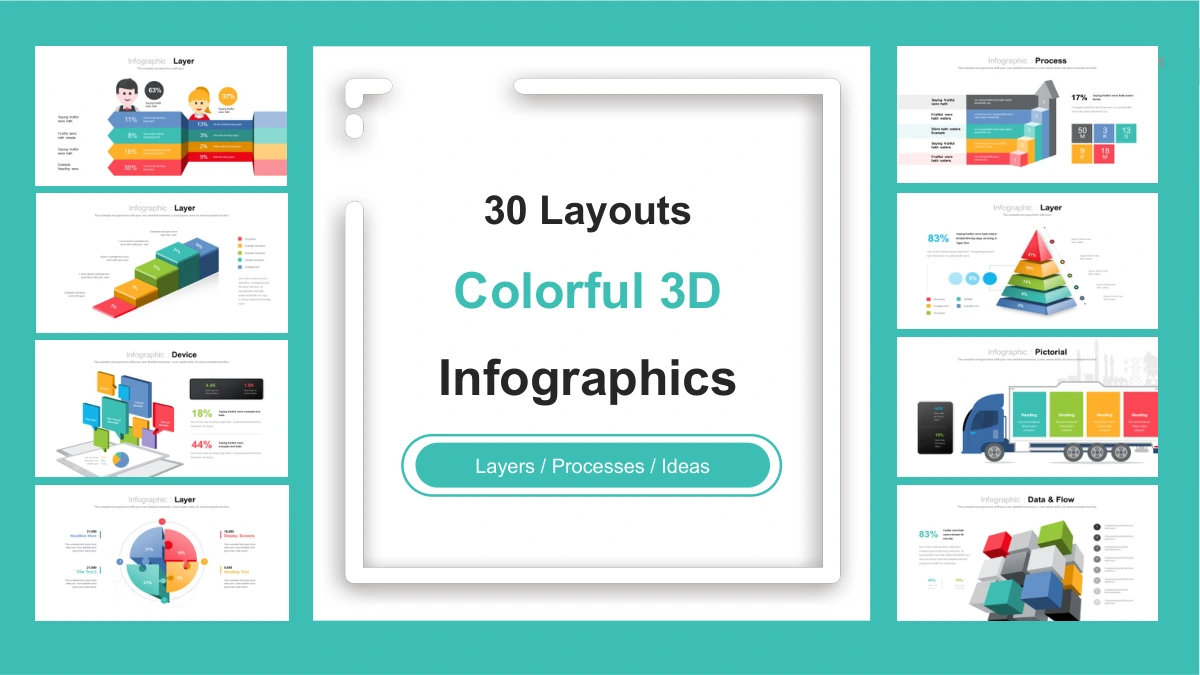
Perspective Diagram Toolkit brings together 31 widescreen slides: a cover and 30 layouts for explaining structures, processes and comparisons. The 3D infographics use perspective, overlapping shapes and shaded faces to suggest depth. Floating layers, stepped blocks and a separated pyramid make hierarchies easy to distinguish. Other 3D infographics use arrows, road pins and folded paths to organize a sequence. Illustrated pages add people, shopping bags, a delivery truck, a balloon, a rocket and devices. Choose 3D infographics by the relationship you need to explain, then replace the short labels and sample figures. Most visuals are drawing objects with manually entered percentages; the device page also includes one small native pie chart with an embedded workbook. These 3D infographics provide visual starting points, so select the layouts that fit your material and keep each explanation focused.
Key Features of These 3D Infographics
Layered forms, process routes and illustrated scenes.
3D Infographics with Layered Forms
Floating slabs, rings and stepped blocks give these 3D infographics depth. Use their separated layers to explain levels, components or priorities in your own topic.
Process Routes and Cycles
Arrows, folded paths and road pins organize these 3D infographics into sequences. Label the stages clearly and explain how each one connects to the next.
Illustrated 3D Infographics
People, a truck, a balloon and a rocket give these 3D infographics a visual context. Choose an illustration that supports your subject and add a short explanation.
3D Infographics with Editable Labels
Edit text, colors and grouped shapes in these 3D infographics. Most values are manual labels, so change the numbers and drawings together.
One Native Pie Chart
The device page adds a pie chart to these 3D infographics. Its workbook holds chart data; nearby percentage labels are independent manual examples.
Reusable Visual Components
These 3D infographics combine short notes, icons and grouped artwork. Preserve details when editing groups; the eight miniature previews on the cover are images.
How to Use These 3D Infographics
Turn the 3D infographics into a clear visual explanation.
-
Choose Your 3D Infographics
Browse all 31 previews and select 3D infographics that fit your subject. Compare the layered forms, process routes and illustrated scenes, then plan the labels and evidence each page needs.
-
Download and Edit the 3D Infographics
Download the English PPTX with an active paid membership and save a working copy. Adapt the 3D infographics with your own text, colors and checked values; edit the pie chart through its data.
-
Review Your 3D Infographics
View the 3D infographics at full size. Check small labels, grouped objects and manually entered percentages, then review the sequence and source terms before sharing a permitted copy.
Questions about These 3D Infographics
How do I download these 3D infographics?
Sign in with an active paid membership to download the 3D infographics as an English PPTX. Daily downloads are unlimited and repeat downloads are available; keep a separate working copy.
How many slides contain 3D infographics?
The file has 31 widescreen slides: a cover and 30 layouts. The 3D infographics include layers, process diagrams and illustrated compositions, mostly built from drawing objects, plus one native pie chart.
Can I change the values in these 3D infographics?
Most 3D infographics use manual drawing objects and percentage labels. Edit those directly; the small pie chart on the device page has a workbook, independent of its neighboring percentage examples.
Can I preview all the 3D infographics?
All 31 pages are shown in file order. Compare the 3D infographics in the gallery before downloading, and enlarge detailed pages to inspect their smallest labels and grouped illustrations.
Will these 3D infographics work in other editors?
The 3D infographics are supplied as PPTX. Google Slides and Keynote compatibility has not been tested; check grouped artwork, fonts, chart behavior and animations after importing the file.
Which fonts do the 3D infographics use?
The English 3D infographics use Arial for text and embedded FontAwesome for icon characters. Check the icons and line breaks after editing or opening the deck in another application.
Are the 3D infographics available in other languages?
Every localized page supplies the same English 3D infographics PPTX. Translate editable labels for your audience; the original miniature previews on the cover remain images with English text.
Can I use these 3D infographics commercially?
Access to the 3D infographics does not grant additional third-party rights. Review source terms before commercial use, and retain source attribution, including the digit mark within the radial diagram.
How should I share the finished 3D infographics?
Share this page so others can preview the 3D infographics. Share edited slides or exported files only where permitted, after checking figures and removing confidential details from your presentation.