Levi Presentation Template: City Photos and Colorful Company Layouts
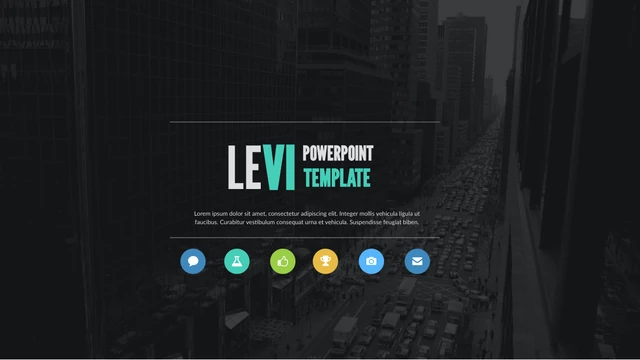
Levi Presentation Template opens with a dark city photograph and the split name LEVI. Blue and teal letters introduce the contrast that carries through Levi Presentation Template: monochrome pictures, white pages and bright diagram accents. Early layouts in Levi Presentation Template describe a project and introduce several team members. The team sequence offers portrait grids, individual profiles and role labels; these are examples to replace, including names and job titles. Levi Presentation Template then moves between full-photo statements and detailed service pages. Blue, teal, lime and yellow distinguish the icon lists, circular arrangements and connected steps. Later pages in Levi Presentation Template include photo collages, three-column text, a personnel timeline and a smartphone layout. Sample percentage rings, a layered area diagram, price boxes and vertical bars give Levi Presentation Template several ways to organize figures. These graphics are drawn from editable shapes rather than native charts; the package has no embedded Excel workbook. Changing a displayed number does not automatically recalculate the shape beside it. The complete 41-page sequence of Levi Presentation Template ends with an icon collection. League Gothic supplies the condensed headings, while Lato is used for body text. Original English labels and Latin placeholder paragraphs remain in Levi Presentation Template, so replace the filler before sharing a finished deck. The gallery follows the source order and preserves the original 16:9 proportions. Choose the pages of Levi Presentation Template that suit your outline, then check image crops, small labels and the contrast of text over photographs.
Key Features of Levi Presentation Template
City photography, team pages and bright diagram accents.
Monochrome city photos
Levi Presentation Template balances dark street photographs with white content pages.
Flexible team layouts
Portrait grids, individual profiles and role labels offer several introductions.
Four bright accents
Blue, teal, lime and yellow distinguish service lists and diagram elements.
Editable shape graphics
Percentage rings, bars and layered areas remain individual drawing objects.
Condensed heading style
League Gothic headings sit above the lighter Lato body text.
41-page preview
Inspect every page of Levi Presentation Template in the original order.
How to Use Levi Presentation Template
Choose a sequence, replace the examples and check the result.
-
Review the full gallery
Compare the team and diagram layouts with your outline.
-
Download your working copy
Paid members can download the PPTX repeatedly without a daily limit.
-
Replace text and figures
Edit Levi Presentation Template, then check fonts, crops and shape values.
Questions about Levi Presentation Template
How can I download Levi Presentation Template?
Sign in with an active paid plan and use the download button on Levi Presentation Template. The PPTX is delivered through a temporary private link. Paid members may download Levi Presentation Template as often as needed, with no daily limit. Save an untouched copy of Levi Presentation Template before you begin replacing its names, photographs and sample text.
How many slides are in Levi Presentation Template?
Levi Presentation Template contains 41 slides in a 16:9 format. Project introductions, portrait grids, service lists, photo statements and diagram pages form the original sequence. The final page of Levi Presentation Template contains a collection of icons. You can delete or rearrange pages in a working copy of Levi Presentation Template when your outline needs a shorter presentation.
Are the diagrams in Levi Presentation Template native charts?
No. The bars, percentage rings and layered areas in Levi Presentation Template are drawing shapes, and the source package contains no embedded Excel workbook. Edit the numbers and the graphic sizes separately in Levi Presentation Template. Check each edited figure for consistency: changing a text label in Levi Presentation Template does not automatically update the surrounding geometry or produce a new calculation.
Can I preview every slide of Levi Presentation Template?
Yes. All 41 pages of Levi Presentation Template appear in the gallery, in the same order as the downloadable file. Use the thumbnails and arrows to move through Levi Presentation Template, and enlarge pages to inspect portrait crops or compact labels. Compare the detailed pages of Levi Presentation Template with your planned text length before choosing a layout.
Can another editor open Levi Presentation Template?
Levi Presentation Template is supplied as PowerPoint (.pptx). Other programs with PPTX support may import the file, but condensed fonts, picture crops and layered shapes can change. Compare the imported Levi Presentation Template with the preview before distributing your presentation. Keep a PowerPoint working copy of Levi Presentation Template so you can recover the original arrangement if another editor alters it.
Which fonts does Levi Presentation Template use?
The visible headings in Levi Presentation Template use League Gothic, and the body text uses Lato. The wide range of heading sizes makes font substitution especially noticeable. Install the appropriate fonts or choose replacements for Levi Presentation Template, then review each page for altered line breaks. Check compact captions and the large cover lettering in Levi Presentation Template before exporting a PDF.
Is the text inside Levi Presentation Template translated?
Levi Presentation Template already uses English headings and Latin placeholder paragraphs. Those sample passages remain in the PPTX; they are not completed copy for your project. Translated website descriptions explain Levi Presentation Template in each site language without replacing the text inside the slides. Rewrite the sample names, roles and paragraphs in Levi Presentation Template for your actual audience, then read the complete deck.
Does downloading Levi Presentation Template establish commercial rights?
A paid download of Levi Presentation Template gives access to the file, but the supplied source does not establish permission to redistribute the design or its photographs. Confirm the rights needed for your use of Levi Presentation Template, including any client distribution. Review replacement images separately. A membership should not be treated as evidence of a broader license for Levi Presentation Template.
How should I share an edited Levi Presentation Template?
Share the page URL when colleagues need to inspect Levi Presentation Template before downloading. For your finished version of Levi Presentation Template, choose a PDF or editable file according to your permissions and the recipient’s needs. Check the exported text, portraits and colored shapes before sending it. Keep your edited Levi Presentation Template separate from the original download so later revisions remain manageable.