

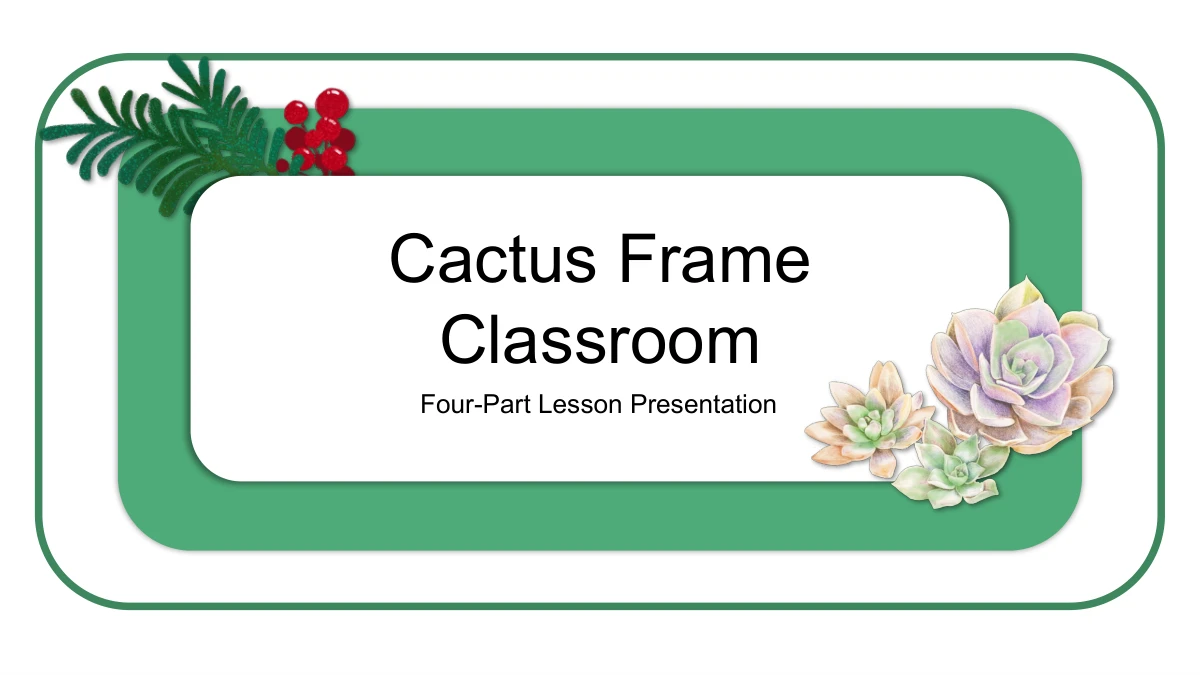
Cactus Frame Classroom Presentation Template: room for your lesson ideas
Cactus Frame Classroom pairs dark green outlines with white and mint panels, using cacti and soft succulent illustrations to give each page a familiar setting. Its 20 slides move from a framed cover and wreath contents page through four sections: Introduction, Key Ideas, Class Notes and Lesson Recap. The content layouts offer three-column notes, paired explanations, six points around a tall cactus and four numbered picture frames. Some drawings cross the panel edges, so short headings and focused paragraphs work best. Three independent 30% examples and a separate arrow-and-block diagram provide manual visual starting points when you need them. The illustrations decorate a general teaching framework; they do not supply a researched lesson about plants. Choose the layouts that fit your subject, replace the prompts with your own explanations and examples, and use the matching closing to bring the discussion to an end.
Key Features of Cactus Frame Classroom Presentation Template
Cactus artwork and clear spaces for short notes.
Rounded Green Frames
Layered green borders frame the cover and closing, while straight outlines and mint bands connect the pages. White areas give your lesson notes room to breathe.
Cacti and Succulent Illustrations
Flowering cacti, small pots and soft succulent drawings bring variety to the layouts. The detailed artwork stays in image form alongside editable text and shapes.
Four Lesson Sections
Introduction, Key Ideas, Class Notes and Lesson Recap divide the deck into four parts. The contents uses short labels to fit its narrow green and white panels.
Several Ways to Group Ideas
Three columns, paired notes and six points around a tall cactus offer different reading patterns. Pick a layout with enough clear space for your explanation.
Manual Visual Examples
Three separate 30% labels sit beneath succulent motifs. Another page uses arrows and blocks; edit these drawn examples by hand when adapting them to your lesson.
A Coordinated Opening and Closing
The cover and Thank You page share rounded frames, leafy sprigs and a succulent cluster. Adapt the title and presenter field to give the lesson a clear finish.
How to Use Cactus Frame Classroom Presentation Template
Plan four sections, add content and review the slides.
-
Choose your lesson sequence
Browse the 20 previews and decide what belongs in each section. Select grouped notes or larger explanations for your points, and keep the plant illustrations clear of long headings.
-
Download and adapt the file
With an active paid membership, download the English PPTX and save a working copy. Replace the sample headings and notes, then adjust any manual labels and diagram shapes to suit your lesson.
-
Check the finished presentation
Review contents labels, picture framing and line breaks on your presentation computer. Check the manual examples against your information, then run through the slides from start to finish.
Questions about Cactus Frame Classroom Presentation Template
What does the 20-slide file contain?
There is a cover, a contents page, four chapter dividers, 13 content layouts and a closing. The dividers on slides 3, 7, 11 and 15 introduce Introduction, Key Ideas, Class Notes and Lesson Recap.
Is this a complete lesson about cacti?
No. The cacti and succulents are decorative illustrations. The English text offers general prompts for a lesson or training presentation. Add your own subject, learning activities, explanations and checked examples.
What can I edit in the file?
You can change the headings, paragraphs, presenter field and separate drawing shapes. The detailed cactus and succulent artwork remains images. Replacing a picture does not make its painted details individually editable.
Are the percentages linked to a data chart?
No. Slide 12 contains three separate 30% sample labels with drawn circular motifs. Slide 18 uses manual arrows and rectangular blocks. There are no native data charts or embedded workbooks, so update related text and shapes yourself.
How do I download it?
An active paid membership is required to download the PPTX. Members can download templates without a daily limit and return for another copy. Every website language offers the same English presentation file.
Can I preview every slide first?
Yes. All 20 pages appear in the gallery, including the four dividers, the six-note cactus layout, manual examples and closing. Compare their text space with your outline before deciding which pages to use.
Which fonts and editors should I use?
The English file uses Arial and includes no embedded fonts. Check the font, line breaks and spacing on the computer you will present from. Google Slides and Keynote compatibility has not been tested.
How should I adapt the cactus note page?
On slide 5, the cactus and pot are an image, while the note and Topic label are separate editable text. Keep the existing white label shape in place when replacing its text, and review the result before presenting.
What should I check before sharing the design?
Keep relevant source-artwork information and confirm the permissions needed for your use, especially commercial reuse. Membership access does not transfer third-party illustration rights. To recommend the template, share its page link.