Terracotta Portfolio Presentation Template: cream panels, rose petals and layered photographs
Terracotta Portfolio Presentation Template combines cream backgrounds and terracotta panels across 36 widescreen slides. The opening layers a wooden-table still life with red rose petals, followed by portrait profiles and expertise captions. Terracotta Portfolio Presentation Template groups six photographs in a moodboard and pairs plant, interior and coastal views with simple captions. Terracotta Portfolio Presentation Template supplies four adjacent Break Section alternatives, palette swatches and overlapping picture frames. Later examples include sample prices, a static phone image, a map with a sample percentage and a native area chart with two series. Terracotta Portfolio Presentation Template leaves space around the pictures for concise explanation. Select layouts that show your own contribution, replace the guidance with accurate project details and check the order. The people, prices and map labels are examples; distinguish them from verified information about your work.
Key Features of Terracotta Portfolio Presentation Template
Cream panels, rose petals and layered photo frames.
Cream and Terracotta
Terracotta Portfolio Presentation Template pairs warm cream space with terracotta panels. Keep captions readable and use the coloured areas to group related work.
Rose Petal Accents
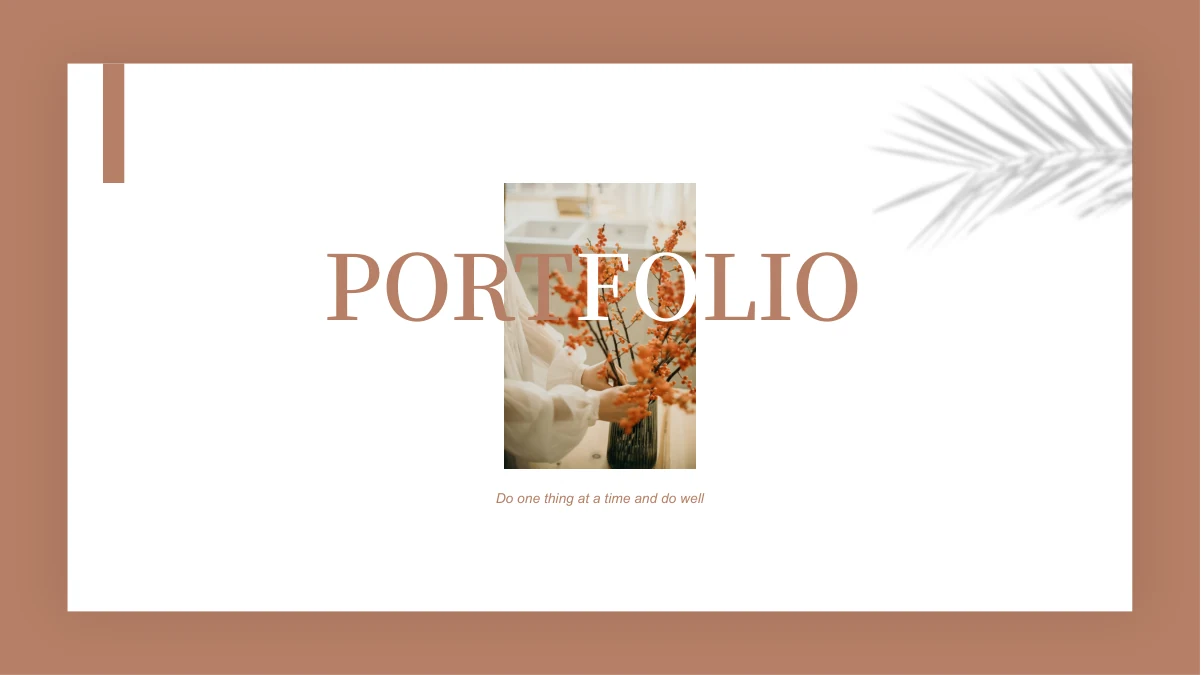
Terracotta Portfolio Presentation Template layers rose petals around the opening still life. Check which objects overlap before replacing the main photograph.
Layered Photo Frames
Terracotta Portfolio Presentation Template overlaps frames around plant, interior and coastal views. Keep picture proportions and add a clear caption for each view.
Six-Photo Moodboard
Terracotta Portfolio Presentation Template groups six photographs in a moodboard. Pick a coherent set and explain their connection without inventing a shared project.
Editable Area Chart
Terracotta Portfolio Presentation Template has a native area chart with two series and five dates. Replace sample data and check labels against the workbook.
Breaks and Colour Swatches
Terracotta Portfolio Presentation Template offers four adjacent break-page alternatives and four manual colour swatches. Select the versions that suit your sequence.
How to Use Terracotta Portfolio Presentation Template
Choose your views, replace examples and check the deck.
-
Select the Views
Preview all 36 pages of Terracotta Portfolio Presentation Template. Choose portrait, moodboard and paired-photo layouts, then use selected break pages to group work that belongs together.
-
Download and Replace
Get Terracotta Portfolio Presentation Template with an active paid plan. Save a working copy, add your own images and captions, then replace the sample chart values with verified project data.
-
Check Photos and Data
Review Terracotta Portfolio Presentation Template at presentation size. Check layered crops, palette labels, dates and the chart workbook; compare the exported PDF with your editable file.

Questions about Terracotta Portfolio Presentation Template
What is included in Terracotta Portfolio Presentation Template?
Terracotta Portfolio Presentation Template contains 36 PowerPoint slides in a widescreen format close to 16:9. Terracotta Portfolio Presentation Template combines cream space, terracotta panels, red rose petals and layered photographs. Portrait and expertise layouts introduce a person or a body of work, while a six-photo moodboard groups visual references. Terracotta Portfolio Presentation Template also includes paired plant, interior and coastal views, four adjacent break-page alternatives and manual palette swatches. Later examples show prices, a static phone, a labelled map and an editable area chart. Select the pages in Terracotta Portfolio Presentation Template that help explain your own contribution. Review the full preview of Terracotta Portfolio Presentation Template before choosing a shorter sequence and writing accurate project captions.
How do I replace pictures in Terracotta Portfolio Presentation Template?
Terracotta Portfolio Presentation Template uses separate picture objects for its still life, portraits and paired photographs. Select the correct object in Terracotta Portfolio Presentation Template before replacing it, especially where a frame or petal sits above part of the picture. A new subject may need a different crop within the existing frame. Terracotta Portfolio Presentation Template does not identify the pictured people, places or photographers as participants in your project. Add relevant images and describe your own work accurately. In Terracotta Portfolio Presentation Template, keep portrait, landscape and square proportions consistent with their visible areas. Inspect Terracotta Portfolio Presentation Template at presentation size after replacement so faces, important details and nearby captions remain clear.
How do the break pages in Terracotta Portfolio Presentation Template work?
Terracotta Portfolio Presentation Template provides four adjacent Break Section alternatives. They offer different visual treatments rather than proving that the finished portfolio must have four chapters. Select a break page in Terracotta Portfolio Presentation Template and place it where a change of topic needs a clear pause. You can omit unused alternatives or reuse a chosen layout with another title. Terracotta Portfolio Presentation Template also includes expertise, profile and photograph pages that can be arranged around those pauses. Give each group a purpose before adding slides. Review the order of Terracotta Portfolio Presentation Template from its cover to the contact examples, and check that the break-page labels in Terracotta Portfolio Presentation Template match the work that follows them.
Can I edit the chart in Terracotta Portfolio Presentation Template?
Terracotta Portfolio Presentation Template contains a native area chart with two series and five date categories. Open the chart data in Terracotta Portfolio Presentation Template to replace the example values in its linked workbook. Check both series and the category labels rather than typing a different number over the chart picture. Terracotta Portfolio Presentation Template also contains manually labelled prices and a percentage on a map; these separate labels are not driven by the area-chart workbook. Keep those examples distinct from your verified figures. After editing Terracotta Portfolio Presentation Template, inspect the plotted areas, legend and axis labels at presentation size. Save the workbook changes and compare the chart in Terracotta Portfolio Presentation Template with the data you intended to show.
Can I adapt the moodboard in Terracotta Portfolio Presentation Template?
Terracotta Portfolio Presentation Template groups six photographs on one moodboard page. Choose a set in Terracotta Portfolio Presentation Template that communicates a consistent direction, such as your own materials, colour references or selected views of a project. The supplied photographs do not establish a shared location, maker or client. In Terracotta Portfolio Presentation Template, concise captions can explain the relationship between the images without making those assumptions. Keep the spacing and check the visible crop of each replacement. Terracotta Portfolio Presentation Template has other paired-photo layouts when two views need more space than a six-image arrangement allows. Review the moodboard in Terracotta Portfolio Presentation Template on the intended screen and remove any image that does not help the audience understand your work.
Are the phone and map in Terracotta Portfolio Presentation Template interactive?
Terracotta Portfolio Presentation Template includes a static phone image and a map with a manually labelled percentage. These examples in Terracotta Portfolio Presentation Template do not provide a functioning app, live navigation or a connected reporting system. Replace the relevant picture or label with information that supports your presentation. Terracotta Portfolio Presentation Template does not verify the meaning of the sample percentage, price labels or dates. Write captions that make the source and purpose of your own figures clear. When editing Terracotta Portfolio Presentation Template, check whether a label is ordinary slide text or part of an image before trying to change it. Preview the finished examples in Terracotta Portfolio Presentation Template and confirm that the audience can distinguish an illustration from actual project evidence.
Which fonts does Terracotta Portfolio Presentation Template use?
Terracotta Portfolio Presentation Template uses Source Han Sans SC Regular and Bold in the prepared English file. The PPTX does not embed font binaries. Open Terracotta Portfolio Presentation Template on your editing computer and inspect the expertise and profile headings, narrow captions and closing year before exporting. Font substitution in Terracotta Portfolio Presentation Template can affect spacing even when the wording is unchanged. Text stored inside a photograph remains part of that photograph, and changing a slide font does not translate it. Keep source credits separate from your own project captions in Terracotta Portfolio Presentation Template. Save an editable copy, check for missing characters and compare the exported PDF with Terracotta Portfolio Presentation Template to confirm that headings and smaller labels fit their boxes.
How do I download Terracotta Portfolio Presentation Template?
Terracotta Portfolio Presentation Template is available to members with an active paid plan. Sign in and use the PPTX download button on this page to obtain Terracotta Portfolio Presentation Template. Paid members can download Terracotta Portfolio Presentation Template without a daily limit, including repeat downloads. Browse all 36 preview pages before selecting the file, and save a working copy before editing. You can open Terracotta Portfolio Presentation Template directly in PowerPoint and replace its guidance, pictures and chart examples without generating a new presentation first. Keep the editable version of Terracotta Portfolio Presentation Template with your project photographs and data so you can revise the selected sequence, check captions and update the chart later.
What should I check before sharing Terracotta Portfolio Presentation Template?
Check Terracotta Portfolio Presentation Template for remaining guidance, sample prices and dates that could be mistaken for your actual results. Make sure the images in Terracotta Portfolio Presentation Template explain your own work and that captions state your contribution accurately. Terracotta Portfolio Presentation Template does not grant an additional licence to original photographs or source material. Follow their applicable terms and keep genuine credits accurate. Inspect the layered pictures, rose petals, moodboard and small labels in Terracotta Portfolio Presentation Template at presentation size. Compare the exported PDF with the editable slides, including both chart series and category labels. Share the detail-page link for Terracotta Portfolio Presentation Template when another person wants to preview the deck or obtain a separate download.