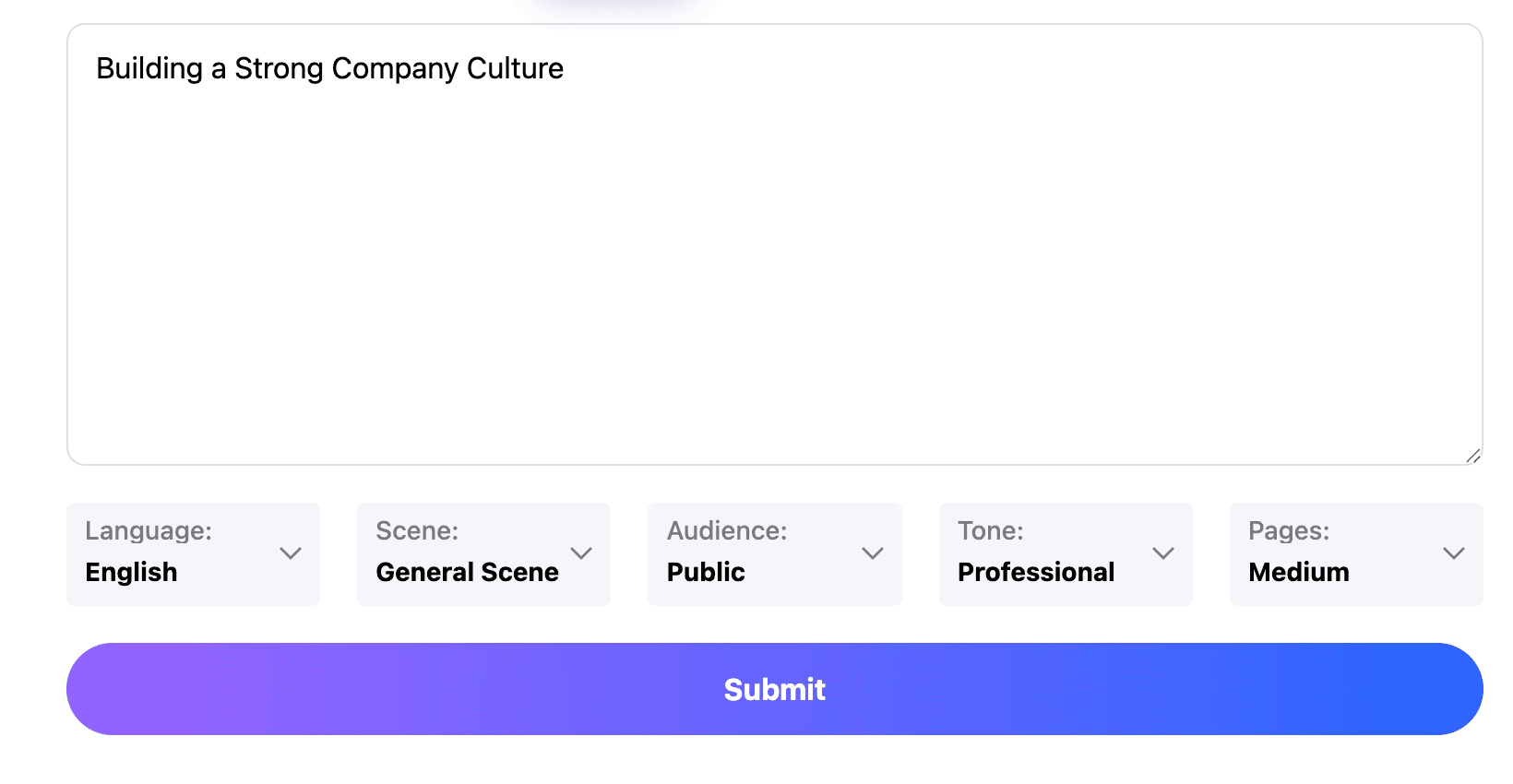
Professional
Creative
Standard
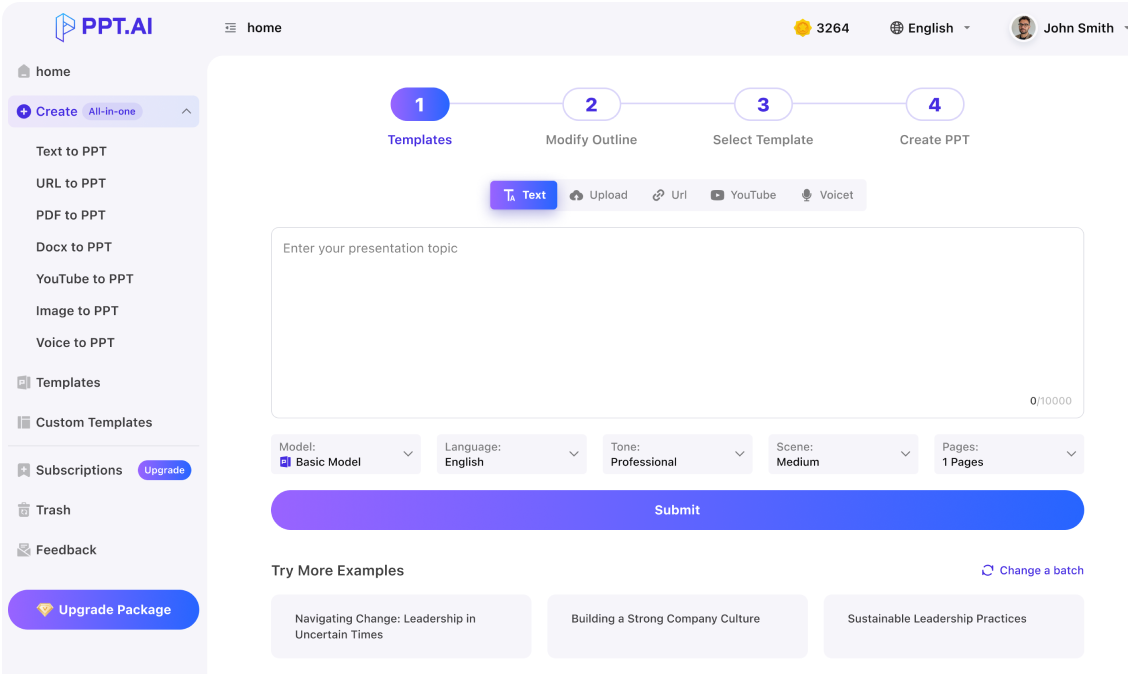
Text
Upload
Url
YouTube
Image
Submit
Drag and drop a file to create a PPT
Supports DOC, DOCX, PDF, PPT, PPTX, TXT, MD, XLS, XLSX, CSV, HTML, EPUB, MOBI, XMIND, and MM files under 10MB
Choose a File
Submit
Submit
Drag and drop a file to create a PPT
Supports PNG, JPG, JPEG, and BMP files under 5MB
Choose a IMAGE

מצגות ai: Begin with the audience

A useful מצגות ai brief explains what listeners need to understand, their background and the decision awaiting them. For a Hebrew business update, separate completed work from next steps and retain the original names of projects. Give מצגות ai confirmed facts rather than unrelated notes, then judge the draft against its purpose.
Start with your brief

מצגות ai: Keep meaning across languages

Hebrew slides often include English product names, figures and abbreviations. In a מצגות ai project, state which terms must stay unchanged and explain unfamiliar expressions once. Keep a source list nearby so shortened sentences preserve their intended meaning. Review מצגות ai headings for natural phrasing rather than translating each word mechanically. For bilingual audiences, choose a main language and reserve the other for technical labels.
Start with your brief

מצגות ai: Inspect the finished reading order

Treat the first מצגות ai result as a draft to examine at presentation size. Check punctuation beside numbers, the placement of parentheses and the order of mixed-language phrases. A correct preview does not guarantee identical behavior after export. Open your project’s output in its intended application. Review מצגות ai charts and captions together, and simplify any line that forces the audience to decode the layout instead of listening.
Start with your brief

מצגות ai: From notes to a rehearsal

Give מצגות ai a manageable brief, refine the outline and check the result in the setting where you will present it.
Step 1
Step 2
Step 3

Set the language and purpose

Start מצגות ai with your audience, topic and preferred content language. Paste a short, reliable passage or use an input supported by the current interface. Mark terms, names and figures that must remain exact.

Arrange the explanation

Review the מצגות ai outline for a coherent opening, evidence and conclusion. Combine overlapping ideas and assign one main message to each slide before selecting an available design that suits the material.

Read it aloud

Rehearse מצגות ai on the screen you plan to use. Check mixed-language lines and exported pages, then correct awkward transitions. Leave room for questions instead of filling every moment with another slide.
Prepare your presentation

מצגות ai: Situations worth preparing for

Use מצגות ai around a real conversation. These examples describe starting briefs, not testimonials or promises of a particular outcome.
A team decision
Structure מצגות ai around a choice between two approaches. State the shared goal, explain the tradeoffs and finish with the decision needed from colleagues.
A community project
For מצגות ai about a neighborhood initiative, identify the need, planned activities and practical responsibilities. Keep contact information appropriate for the audience receiving the slides.
A classroom explanation
Build מצגות ai from a learning question, a worked example and a discussion prompt. Check terminology against the materials students already use in class.
A bilingual introduction
Use מצגות ai to explain an organization to mixed-language visitors. Preserve official names while keeping the main explanation consistent instead of alternating languages within every sentence.
A research conversation
Prepare מצגות ai around the research question and the evidence answering it. Distinguish measured results from interpretation, and keep source references available for follow-up questions.
A short personal talk
Choose a few moments for מצגות ai that explain your experience. Connect them with a theme the audience can remember rather than listing an entire chronology.

מצגות ai: Practical questions

Check language, layout and delivery choices before you rely on the final presentation.

What does מצגות ai refer to here?

The phrase describes AI-assisted presentations. This מצגות ai page introduces a PPT.AI workflow for organizing your material and reviewing the draft. It is not a separate product or a guarantee of automatic Hebrew typesetting.

How should I specify Hebrew content?

State the intended language clearly in your מצגות ai brief and review the language options offered in the interface. Read the resulting sentences carefully; a language instruction is not a substitute for checking natural usage.

Will mixed Hebrew and English always align correctly?

Do not assume that. In מצגות ai, inspect text direction, punctuation and numbers, especially after export. Rephrase or adjust problematic lines in the editing workflow available to you.

Which related guide matches my source?

If your מצגות ai material begins as a document, the doc to ppt ai guide discusses source selection. For a broader slide sequence, explore ai slide deck generator before deciding how much content belongs in the deck.

Can I keep English technical terms?

Yes, specify the terms that should remain unchanged in the מצגות ai brief. Introduce an abbreviation in context and verify that it is consistent across headings, labels and captions.

Should all source material appear in מצגות ai?

No. Choose the evidence needed for the conversation. Keep supporting detail separately when it would interrupt the main explanation.

Can I edit the downloaded presentation?

Check the export options for your מצגות ai project and account. Open a sample in the destination application to confirm which elements remain editable; a flattened image behaves differently from a text box.

Is every generation and export free?

Check the current account limits and the cost displayed before continuing. Availability can vary with mode and output, so this page does not promise unlimited free generation or downloads.

What should I do with private source material?

For מצגות ai, include only material you are permitted to use in the service. Remove unnecessary personal details and consult your organization’s handling requirements before uploading internal documents.

What is the final מצגות ai review?

Read your מצגות ai presentation from beginning to end. Confirm names, dates, citations and reading order, then rehearse the opening and closing without relying on dense slide text.

Discover More PPT AI Products

Unlock even more with PPT AI suite of intelligent solutions

PPT AI Blog

Explore premium articles to learn how to maximize your use of PPT AI for better presentations.
Try PPT.AI Today
Start here, better presentations instantly.
Start for free
Help us understand?
What was the reason you didn't complete your payment?
Continue payment
Submit feedback