Green Orbit Portfolio Presentation Template: Grainy Green Panels, Orbit Lines and Connected Idea Cards
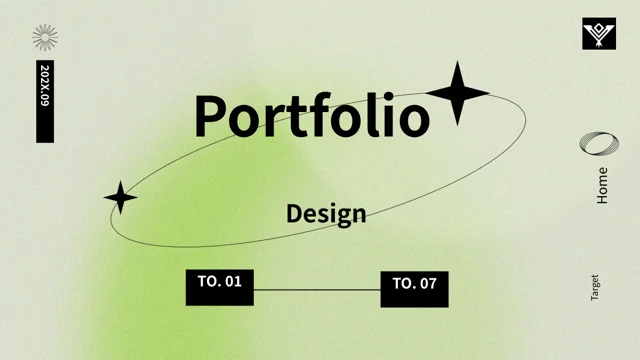
Green Orbit Portfolio Presentation Template opens on a grainy green background with a black orbit ellipse and four-point stars around the title. Green Orbit Portfolio Presentation Template returns to that motif on its closing page, while a dashed curved contents path links four numbered green markers. Green Orbit Portfolio Presentation Template uses four chapter pages with gradient squares, hand-drawn ellipses and short note areas. Connected rounded cards, hexagon branches and a six-point diagram provide ways to group ideas. A two-arrow ring compares 75% and 25%, and Variation A/B rows use colored blocks for sample metrics. Other layouts arrange notes under 30, 60 and 90-day labels, an editable check-and-cross table, ranked shapes and icon circles. Metric blocks and percentage drawings are manual examples, not measured results or a live dashboard. Replace the sample periods, labels and English guidance with verified project details, then check that each diagram agrees with its caption.
Key Features of Green Orbit Portfolio Presentation Template
Orbit motifs, pale-green geometry and structured comparison notes.
Grainy Green Orbit Motif
Green Orbit Portfolio Presentation Template uses grainy green panels, orbit lines and four-point stars. Keep titles brief and check notes against the texture.
Curved Contents and Chapters
Green Orbit Portfolio Presentation Template links four contents markers along a dashed curve. Update labels and chapter topics together when reordering pages.
Connected Cards and Hexagons
Green Orbit Portfolio Presentation Template groups rounded cards and hexagon branches on lines. Use short related points and keep connectors clear when moving shapes.
Manual Comparison Blocks
Green Orbit Portfolio Presentation Template has an arrow ring and Variation A/B blocks. Replace values and adjust shapes; labels do not update drawings automatically.
Day-Based Notes and Comparison Table
Green Orbit Portfolio Presentation Template has day-based notes and an editable comparison table. Define the periods and check symbols for your own material.
Ranked Shapes and Icon Notes
Green Orbit Portfolio Presentation Template pairs ranked shapes and icon circles with notes. Explain ranking criteria rather than treating them as proven results.
How to Use Green Orbit Portfolio Presentation Template
Choose the chapters, replace sample details and verify the comparisons.
-
Plan the Chapter Topics
Browse all 20 pages of Green Orbit Portfolio Presentation Template. Choose four chapter topics and connected-card or comparison layouts, then align the contents labels with your sequence.
-
Download and Write Your Notes
Download Green Orbit Portfolio Presentation Template with an active paid plan; daily and repeat downloads are unlimited. Save a copy and replace examples with checked labels, periods and figures.
-
Verify Every Comparison
Review Green Orbit Portfolio Presentation Template block counts, ring labels and table check symbols. Compare exports with the file and confirm that rankings and day notes match your explanation.
Questions About Green Orbit Portfolio Presentation Template
How do I download Green Orbit Portfolio Presentation Template?
Download Green Orbit Portfolio Presentation Template after signing in with an active paid plan. There is no daily limit on Green Orbit Portfolio Presentation Template downloads, and repeat downloads are allowed. The Green Orbit Portfolio Presentation Template PowerPoint file is editable. Keep a separate Green Orbit Portfolio Presentation Template copy before changing the chapter topics, green markers or sample comparison drawings, so the original arrangement remains available while you develop your own portfolio story.
What is included in Green Orbit Portfolio Presentation Template?
Green Orbit Portfolio Presentation Template contains 20 slides in a 16:9 format. Green Orbit Portfolio Presentation Template has an orbit-themed cover, a curved four-item contents page, four numbered chapter pages and a matching thank-you page. The Green Orbit Portfolio Presentation Template layouts offer connected cards, hexagon branches, sample metric blocks, day-based notes, an editable comparison table, ranked shapes and icon circles. Green Orbit Portfolio Presentation Template has no native data charts or chart workbooks. Review every Green Orbit Portfolio Presentation Template preview to choose the layouts relevant to your material.
How are the chapters in Green Orbit Portfolio Presentation Template organized?
Green Orbit Portfolio Presentation Template starts its four chapters on pages 3, 7, 12 and 16. A Green Orbit Portfolio Presentation Template chapter page pairs a gradient square and hand-drawn ellipse with its number and a short note. Match the four Green Orbit Portfolio Presentation Template contents markers to the subjects you choose. After moving or deleting Green Orbit Portfolio Presentation Template pages, check the chapter numbering and curved contents sequence so readers can follow the revised order.
Are the Variation A/B metrics in Green Orbit Portfolio Presentation Template real test results?
Green Orbit Portfolio Presentation Template includes a Variation A/B comparison with rows of colored blocks and sample percentages. These Green Orbit Portfolio Presentation Template values do not establish a completed experiment, conversion result or sales record. The Green Orbit Portfolio Presentation Template blocks are manually arranged; replacing a number does not automatically recolor the row. Use verified values in Green Orbit Portfolio Presentation Template if you keep this layout, and explain the measurement period and criteria rather than treating the original examples as evidence.
Can I edit the diagrams in Green Orbit Portfolio Presentation Template?
Green Orbit Portfolio Presentation Template uses manually arranged cards, lines, hexagons, circles and comparison marks. The page 14 comparison table has editable cells. You can change the editable Green Orbit Portfolio Presentation Template text and shapes in presentation software, while artwork stored as an image needs image editing or replacement. Review Green Orbit Portfolio Presentation Template connectors after moving a card or branch. Check the Green Orbit Portfolio Presentation Template arrow ring, sample percentages and block counts separately because the file has no native charts or embedded chart workbooks to update them from data.
How should I use the 30, 60 and 90-day pages in Green Orbit Portfolio Presentation Template?
Green Orbit Portfolio Presentation Template provides day-based notes and a native comparison table on page 14. The Green Orbit Portfolio Presentation Template period labels do not prove that work has been completed on those dates. Replace the Green Orbit Portfolio Presentation Template periods with your own schedule or stages, edit the table cells, and define what each check, cross or circle indicates. Make the Green Orbit Portfolio Presentation Template descriptions consistent across pages, so a reader can understand whether you are showing a plan, a comparison or verified progress.
Which fonts does Green Orbit Portfolio Presentation Template use?
Green Orbit Portfolio Presentation Template uses Source Han Sans SC Regular and Bold for its final text. The Green Orbit Portfolio Presentation Template file retains some original font attachments, but the current Source Han font is not newly embedded. If your editor substitutes another typeface in Green Orbit Portfolio Presentation Template, install the matching font and check the text again. Compare Green Orbit Portfolio Presentation Template chapter numbers, compact comparison labels, small notes and rotated side labels with the supplied previews after any font change.
Do the ranks and date labels in Green Orbit Portfolio Presentation Template describe an actual project?
Green Orbit Portfolio Presentation Template includes first-to-fourth ranking shapes and placeholder date labels. These Green Orbit Portfolio Presentation Template examples do not verify awards, performance positions or a completed project history. Replace Green Orbit Portfolio Presentation Template rankings with a comparison you can support and explain its criteria. Update or remove the Green Orbit Portfolio Presentation Template sample date labels as needed; do not claim a real time period or achievement solely because the original page shows a number, trophy icon or date-like string.
What should I review before sharing Green Orbit Portfolio Presentation Template?
Check Green Orbit Portfolio Presentation Template contents labels and chapter topics against your final outline. Read the Green Orbit Portfolio Presentation Template comparisons, day-based notes and ranking explanations for unsupported sample claims. Review Green Orbit Portfolio Presentation Template block colors, arrow directions, connector positions and check symbols, then test small notes on your intended screen. Compare each Green Orbit Portfolio Presentation Template exported page with the editable file. Share Green Orbit Portfolio Presentation Template once the diagrams, labels and verified details all describe the same project story.