Levient Gradient Presentation Template: Soft Color, White Cards and Editable Charts
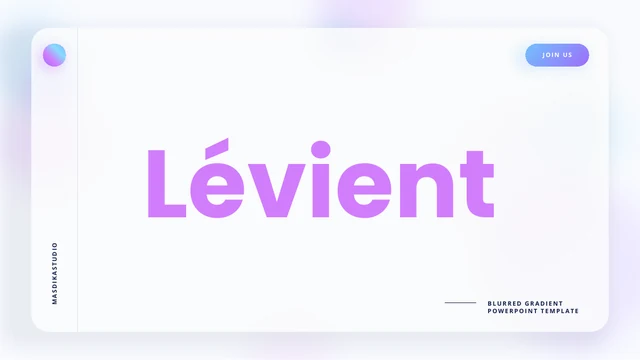
Levient Gradient Presentation Template uses blurred blue and violet gradients behind white panels, rounded cards and dark headings. The 40-page sequence moves from an introduction through team profiles, services, interface examples and portfolio layouts. Levient Gradient Presentation Template includes striped picture placeholders where you can add your own photographs or screenshots; the stripes are part of the supplied design. A clustered column chart and a pie chart provide editable data views, while other percentage rings and progress graphics are arranged from shapes. Levient Gradient Presentation Template also offers four SWOT pages, laptop and phone mockups, three pricing cards and a contact page before the final Thanks slide. Choose the sections that suit your story and replace the sample names, figures, prices and contact details with verified information. The pale background gives the design a light feel, so check small captions and subtle elements at the size your audience will see.
Key Features of Levient Gradient Presentation Template
Explore gradient panels, editable charts and presentation layouts in Levient Gradient Presentation Template.
Soft Gradient Panels
Levient Gradient Presentation Template places blue and violet behind white cards. Keep headings clear and check pale captions before presenting on a large screen.
Ready-to-Fill Picture Areas
Levient Gradient Presentation Template provides striped picture placeholders. Add your own photos or screenshots and inspect their crops within the card layouts.
Two Editable Charts
Levient Gradient Presentation Template includes a column chart and a pie chart with workbooks. Update the data, then review separate labels and supporting notes.
Four SWOT Pages
Levient Gradient Presentation Template has individual Strength, Weakness, Opportunity and Threat pages. Replace examples with brief, evidence-based observations.
Interface and Device Mockups
Levient Gradient Presentation Template offers login, app, laptop and phone shapes. Use them to frame screenshots or explain concepts, not as working software.
Pricing and Contact Cards
Levient Gradient Presentation Template ends with pricing cards, contact details and Thanks. Replace the example plans and addresses before sharing your own work.
How to Use Levient Gradient Presentation Template
Choose the story, replace examples and review the finished slides.
-
Choose Your Sequence
Review all 40 pages of Levient Gradient Presentation Template. Select the team, services, portfolio or SWOT layouts that suit your message. Arrange those pages into a short sequence before writing the final text.
-
Download and Personalize
Get Levient Gradient Presentation Template with an active paid membership. Daily and repeat downloads are unlimited. Edit a copy, add pictures to the striped areas and replace sample names and figures.
-
Check Data and Small Text
Edit the charts in Levient Gradient Presentation Template through their data sheets. Check manual labels separately, review pale text and image crops, then export a copy and inspect the result before sharing.
Questions About Levient Gradient Presentation Template
How can I download Levient Gradient Presentation Template?
Use an active paid membership to download Levient Gradient Presentation Template from its detail page. Daily and repeat downloads are unlimited for paid members. The download of Levient Gradient Presentation Template is a PowerPoint file, with editable text, shapes and two native charts. View the gallery before choosing Levient Gradient Presentation Template, then save an original copy and edit a duplicate. This makes it easier to recover a card or compare the original spacing if your changes become crowded. Review the finished Levient Gradient Presentation Template on your intended screen before sending it to an audience.
How many slides does Levient Gradient Presentation Template include?
Levient Gradient Presentation Template provides 40 slides in widescreen 16:9 format. Its sequence includes introduction, team, services, interface examples, portfolio, charts, SWOT, device mockups, pricing and contact pages. The last page of Levient Gradient Presentation Template is a Thanks slide. You do not need to use every page of Levient Gradient Presentation Template; choose a coherent sequence that supports your topic. Rename the sample headings and remove sections you do not need. Before presenting Levient Gradient Presentation Template, check that references to people, dates and services agree across all the pages you have kept.
Why are there striped areas in Levient Gradient Presentation Template?
The striped areas in Levient Gradient Presentation Template are supplied picture placeholders, not missing downloaded photographs. They mark spaces where you can place your own images or screenshots. Add a picture to the chosen area in Levient Gradient Presentation Template, then check its crop and position against the surrounding card. Some picture areas in Levient Gradient Presentation Template are tall, while others are wide or square, so prepare suitable versions of your images. Keep important details away from the edges. Review Levient Gradient Presentation Template page by page after adding pictures to ensure the stripes are only retained where you actually want them.
Which charts in Levient Gradient Presentation Template are editable?
Levient Gradient Presentation Template has a native clustered column chart on page 25 and a native pie chart on page 26, each with an embedded workbook. Edit those charts in Levient Gradient Presentation Template through PowerPoint’s chart data controls. Other percentages, progress bars and interface examples in Levient Gradient Presentation Template use shapes and separate labels; they do not all update from a data sheet. Check nearby text after changing chart values in Levient Gradient Presentation Template, especially the manually placed percentage labels. Replace the example numbers with your own verified data and make sure the visual and written explanations remain consistent.
Can I inspect Levient Gradient Presentation Template before downloading?
Yes. The gallery displays all 40 pages of Levient Gradient Presentation Template, including the striped image placeholders and the two chart pages. Use thumbnails to compare the white cards, gradient backgrounds and available text space. When evaluating Levient Gradient Presentation Template, look closely at the smaller pale captions and consider your viewing conditions. A preview of Levient Gradient Presentation Template shows the supplied layout, not the result after new pictures or fonts are added. Make another full review of your edited Levient Gradient Presentation Template, including the exported PDF if you intend to share that format.
Which fonts are used in Levient Gradient Presentation Template?
Levient Gradient Presentation Template uses Poppins, Open Sans, Lora Italic and Work Sans, with Roboto used for some quote characters and Calibri in the charts. Fonts are not embedded in Levient Gradient Presentation Template. Install the matching typefaces or choose substitutes and review all slides for changes to spacing. The italic quotations and dark headings in Levient Gradient Presentation Template have different proportions, so one replacement may not suit every role. Check chart text and the small labels in Levient Gradient Presentation Template as well. The website preview is an image and does not install any fonts on your device.
Are the app screens and prices in Levient Gradient Presentation Template real services?
The interface compositions and pricing cards in Levient Gradient Presentation Template are presentation examples, not working applications or current offers from PPT AI. Replace the example prices, names, contact details and claims in Levient Gradient Presentation Template before using them for your own organization. The login panel, play button and phone mockup in Levient Gradient Presentation Template are visual elements; they do not provide those functions by themselves. The editable text in Levient Gradient Presentation Template is supplied in English with filler passages. Website translations describe that same file, so write your own finished content in the language your audience needs.
Can I use Levient Gradient Presentation Template in other apps or commercial work?
Presentation apps that import PPTX may open Levient Gradient Presentation Template, but gradients, shadows, charts and fonts can render differently. Use PowerPoint as the main reference and compare an imported Levient Gradient Presentation Template with the gallery. For commercial use, check the terms that apply to Levient Gradient Presentation Template and any additional fonts or pictures you include. Paid downloading does not grant separate rights to every asset or remove attribution requirements. Preserve necessary credits in Levient Gradient Presentation Template and confirm permission before redistributing an editable template or selling a derivative design.
How should I share Levient Gradient Presentation Template?
Recommend Levient Gradient Presentation Template by sharing its public detail page. Other people can browse the preview and download Levient Gradient Presentation Template through their own eligible accounts. To share your completed presentation, export the edited Levient Gradient Presentation Template to PDF or present it directly after reviewing each page. Keep the editable file for future revisions. Before distributing Levient Gradient Presentation Template, check sample contact details, pricing examples, chart labels and image permissions. Verify that pale captions remain readable in the exported version, and do not redistribute the untouched template beyond its applicable terms.