

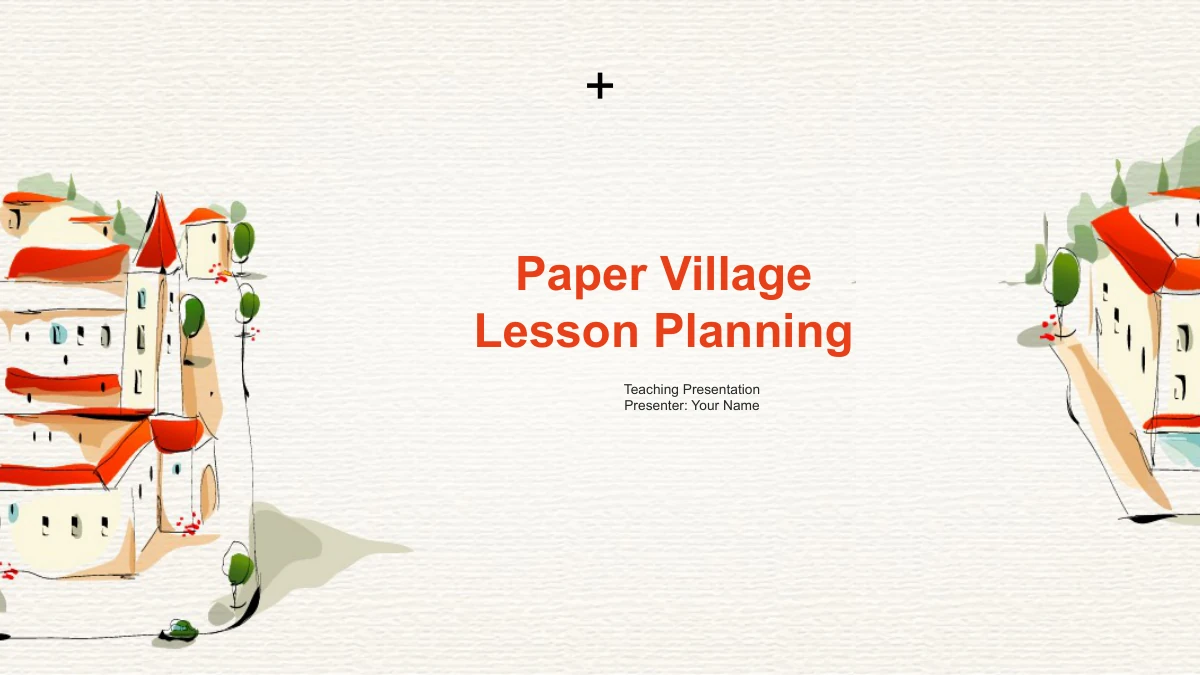
Paper Village Lesson Planning Presentation Template: a visual route through your teaching plan
Paper Village Lesson Planning gives a teaching presentation a warm paper-textured setting. A small red-roof village appears on the cover and dividers, while orange-red shapes carry ideas through the 25-slide file. The sequence moves from Teaching Analysis to Teaching Strategy, Teaching Process and Teaching Reflection. Inside, education-themed photographs sit in a tree, timeline, puzzle pieces and paired rows. Separate layouts offer numbered cards, progress rings, layered diamonds, a pyramid and connected stages. These pages are a framework for explaining your own teaching choices, not a completed lesson. Select diagrams that clarify your objectives, activities or review points, then replace the sample text with concrete details. Every numerical graphic is made from independent shapes and labels rather than a linked spreadsheet. Update the figures and their visual proportions together so that your presentation communicates the intended meaning.
Key Features of Paper Village Lesson Planning Presentation Template
A paper backdrop with structured teaching diagrams.
Paper and Village Motifs
Cream paper texture and a red-roof village give the opening and section pages a shared setting. Orange-red accents link the headings and diagrams throughout.
Four Teaching Sections
Analysis, Strategy, Process and Reflection create a clear route through a teaching plan. Use each divider to explain why the next group of pages matters.
Classroom Photo Layouts
Education-themed photos appear inside tree leaves, puzzle pieces and other frames. Replace or retain them according to the teaching point you want to explain.
Manual Diagram Toolkit
Rings, comparison blocks, paired bars and a pyramid provide different ways to show ideas. Their shapes and labels are separate; no spreadsheet updates them.
Stages and Sequences
A photo timeline, numbered chevrons and linked circles organize short sequences. Choose the structure that fits your teaching activity and keep each step clear.
Reflection and Review
The final section pairs photos with notes and uses icon panels and puzzle callouts. Select the layouts that help explain what worked and what you would change.
How to Use Paper Village Lesson Planning Presentation Template
Plan the argument, choose the diagrams and check the details.
-
Match slides to your plan
Preview all 25 slides and plan your teaching analysis, strategy, process and reflection. Select only the diagrams that support your points, and outline a short, clear message for each page.
-
Download and personalize
Use an active paid membership to download the English PPTX. Open a working copy, check Arial, then replace the sample notes and any classroom photographs that do not fit your own lesson.
-
Check examples and present
Update manual values and shape proportions together. Check labels, photo crops and transitions in presentation mode, and make sure your reflection follows from the teaching choices you described.
Questions about Paper Village Lesson Planning Presentation Template
How can I download this template?
Sign in with an active paid membership, then use the download button. Members have unlimited daily downloads and can download the template again. The file is an editable English PowerPoint presentation.
How are the 25 slides organized?
The file contains a cover, contents page, four section dividers, 18 content pages and a closing slide. Teaching Analysis, Teaching Strategy, Teaching Process and Teaching Reflection start on pages 3, 8, 14 and 20.
Does it contain a ready-to-teach lesson?
It provides a presentation framework for explaining your own lesson planning. The notes, photographs and diagrams are examples. Add your subject, learners, objectives, activities and evidence; do not treat the sample values as research findings.
Do the charts update automatically?
No. The numerical graphics use PowerPoint shapes and text, with no native chart or embedded workbook. Progress rings, comparison blocks, paired bars and other examples must be edited manually. Check that their visual proportions agree with the values you choose.
Can I edit the diagrams and photographs?
Text and separate shapes can be edited in PowerPoint. Photographs remain image objects, and some are cropped inside tree leaves or puzzle pieces. After replacing an image, inspect the crop and keep any original source credits with retained artwork.
Can I inspect all the layouts before downloading?
Yes. The gallery shows all 25 pages from the final English PPTX. Review the smaller labels on the comparison blocks and paired bars, along with the photograph frames, to see whether the layouts suit your content.
What fonts and presentation editors should I use?
The English release uses Arial and does not include embedded font files. Check the font and spacing on the computer you will present from. Google Slides and Keynote compatibility has not been tested.
Are the download and website translations the same language?
The descriptions and image explanations are translated for the website. All language versions download the same English PPTX. If you translate the slides, check every text box and diagram label for line breaks and spacing.
How should I share or reuse the design?
Share this template page link when recommending the design. Before using the file commercially, check the rights for its source photographs and illustrations; membership does not extend those rights. Replace the sample material and retain relevant credits.