

Watercolor Lighthouse Stories Presentation Template: scenes for a four-part story
Watercolor Lighthouse Stories brings together a seaside cover, animal illustrations and small everyday scenes in a 20-slide presentation. Green and teal painted bands frame white content areas, while clouds and a warm sun link the different pages. Four chapters—Overview, Ideas, Examples and Review—provide a simple route through your material. Inside, a coffee shop, a clifftop house, backpacks, a scooter and a balloon sit beside short notes. Other layouts group fish silhouettes, birds, numbered examples and two-step explanations. The lighthouse returns on the closing page, giving the opening and ending a shared visual theme. These illustrations support your own story; they are not a finished lesson or a study of lighthouses. Choose scenes that help explain your topic, replace the sample text and keep each slide focused. The numbered mound shapes are manual examples, so check both their labels and proportions when adapting them.
Key Features of Watercolor Lighthouse Stories Presentation Template
Painted edges, illustrated scenes and clear sections.
Watercolor Borders
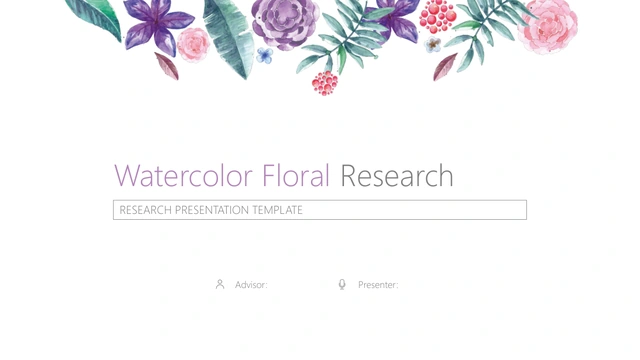
Green and teal painted bands frame the white content areas. A decorative floral strip and recurring sun-and-cloud motifs connect the scenes across the deck.
Four-Part Structure
A contents page introduces four chapters, each with its own numbered divider. Keep the sequence for a short talk, or rename the sections to match your outline.
Everyday Illustrations
A coffee shop, house, backpacks and scooter accompany editable notes. Select a scene that supports your point rather than treating each picture as a fixed topic.
Animal Story Pages
Forest animals, fish, birds, a raccoon and an elephant offer varied layouts. Pair each illustration with a clear explanation and preserve existing image credits.
Manual Number Shapes
Four mound-shaped examples carry separate numeric labels. They are drawn objects, not linked charts; update the values and visual proportions together when needed.
Matching Start and Finish
The red-and-grey lighthouse appears on the cover and closing page. Use the first to introduce your subject and the last to leave one concise takeaway for readers.
How to Use Watercolor Lighthouse Stories Presentation Template
Choose a sequence, add your story and review.
-
Preview the scenes
Browse all 20 pages before choosing layouts. Match the four chapters to your outline, then select the illustrated note pages that help explain your ideas without crowding the artwork.
-
Download your working copy
Sign in with an active paid plan to download the English PPTX. Keep a working copy, check that Arial is available and review the full deck in your presentation editor before making changes.
-
Replace and review
Add your text and update the manual numeric examples. Check line breaks beside the illustrations, retain image credits and review the opening, section breaks and closing at presentation size.

Questions about Watercolor Lighthouse Stories Presentation Template
How do I download the template?
Sign in with an active paid membership and use the download button. Members can download this English PowerPoint file repeatedly, with unlimited daily downloads. Keep an editable working copy for your project.
What is included in the 20 slides?
The file contains a cover, a contents page, four numbered dividers, 13 content pages and a closing slide. The dividers appear on pages 3, 8, 13 and 17; the lighthouse illustration connects the cover and closing page.
Is this a complete lesson about lighthouses?
No. The lighthouse is a decorative motif on the first and last pages. The other layouts mix animals and everyday scenes with editable sample notes. Add your own topic, explanations and verified information to build a complete presentation.
Which parts can I edit?
You can change text and separate PowerPoint shapes, including the manual number labels. The supplied illustrations remain image objects, so details painted inside them are not individual editable shapes. Preserve existing image signatures when reusing the artwork.
Are the numerical examples linked to a spreadsheet?
No. The four mound-shaped examples on page 7 use separate labels: 145, 7.450, 80 and 300. No units are specified, and there is no native chart or embedded workbook. Replace the labels and adjust the shapes to suit your own meaning.
Can I preview the entire file first?
Yes. The gallery shows all 20 pages from the English download file. Inspect the longer note areas beside the scooter, balloon and book illustrations, and decide which layouts fit your text before downloading.
Which fonts and editors should I use?
The English file uses Arial and does not embed font files. Check that the font is installed and review spacing in your presentation editor. Compatibility with Google Slides or Keynote has not been tested.
Does changing the website language translate the slides?
The page description and image explanations are localized, but every language version provides the same English PPTX. Edit the slide text yourself if you need another language, then check line breaks around the illustrations.
How should I use and share the template?
Check the source artwork rights for your intended use; a paid download does not grant additional rights to third-party illustrations. Keep existing credits, replace the sample content and share the template page link when directing others to this design.